Admin guide
For your organization's SourceLace admins: who can sign in, single sign-on, groups and access by group, sources, turning on changes, AI settings, data protection, runners, the audit trail and how long things are kept.
Everything here is done in the SourceLace app by someone with the admin role. Most of it can also be done by asking an MCP client in plain words, which calls SourceLace's admin tools (admin_people, admin_sources and admin_groups). Single sign-on is set up in the app only, so a client secret never has to be typed into a chat. Every admin change is recorded in your organization's audit trail.
Roles
| Role | Can |
|---|---|
| Member | Connect sources with their own logins, ask questions, propose changes (where allowed), keep their own skills, chats and projects. |
| Admin | Everything a member can, plus manage people, email domains, sources, groups, single sign-on, settings, shared skills, and read the audit trail, usage and invoices. |
Every organization always keeps at least one admin: SourceLace refuses to remove or demote the last one.
What your organization can use (seats, connectors, AI questions, and features such as access by group) depends on its plan. See Plans and limits.
Finding your way around Administration
Admins see an Administration group in the menu, folded away until you open it. Inside, five headings group the pages by what you are doing. Members never see this group, and a member who opens one of its addresses gets a short message that the page is for admins.
| Heading | Pages | What you do there |
|---|---|---|
| People and access | People, Groups, Sharing, Sign-in | Invite people, set their groups, choose how far anyone may share, and set up single sign-on and automatic provisioning. |
| Connections | Connections, Runners (when your organization has runners), Change approvals | Add the systems people connect, run agents inside your own network, and decide who approves changes to your systems. |
| AI, usage and plan | AI model, Limits, Usage, Billing | Choose the AI model and your own key, make limits stricter, and see use and invoices. |
| Business setup | Business setup (when it is on for your organization), Chat defaults | Review your setup, define business terms, and set what every chat starts with. |
| Trust and health | Health, Audit log, Data protection, Data retention | See whether everything works, read and check the audit trail, and decide what the AI sees and how long things are kept. |
The pages that used to be one Settings page are now separate pages, one for each topic. Old links and bookmarks still open the right one.
| What used to be in Settings | Where it is now |
|---|---|
| AI model and use | AI model |
| Single sign-on and Provisioning (SCIM) | Sign-in (two tabs) |
| Sharing | Sharing |
| Chat start and instructions, Chats (how long chats are kept, tables in answers, where this came from and attachments in chat) and Questions about SourceLace | Chat defaults (three tabs) |
The account menu (your name at the bottom of the menu) no longer has Organization settings: it holds Your settings, Your instructions and Sign out, which are about you, not your organization. Everything about the organization is under Administration. The settings for agents stay with the agents, under Agents → Settings.
People and sign-in
People sign in to SourceLace with Google, Microsoft, or your organization's own identity provider through single sign-on. SourceLace never sees their password: it receives a confirmed email address from the identity provider and checks it against your organization's people.
There are two ways someone gets in:
The People page lists 50 people at a time. Search finds people by email, role or how they joined, and Role and State (active or deactivated) narrow the list. The Role and State choices, the order and the page are kept in the page's address, so a copied link shows the same list; what you type in Search (it can be a person's email) is not put in the address, so a copied link starts with an empty search box. Clear filters empties them. The table works like the Agents list: drag a column heading's edge to resize it, use Columns to move or hide a column, and your layout is remembered on every device you sign in on. Each person's row shows the groups they are in and the groups they manage (see Access by group and Group managers). The People page used to be called Team.
- Invited. On the People page, under Invite someone, enter their email address and choose member or admin. From chat: "Add bo@corvanta.com to SourceLace as a member". Invited people stay in even if you later remove the email domain they are at.
- By email domain. Under Email domains, list your domains (such as
corvanta.com). Anyone who signs in with a verified address at one of them joins as a member. Public domains such as gmail.com are refused. If you remove a domain, the people who joined through it lose access: they are signed out of SourceLace and of their AI apps, and their sign-ins to your systems are deleted. People you invited stay.
Each person is one seat. The People page shows how many seats are used of your plan's maximum; on Starter and Team, nobody new can join once it is reached (see Seats).
The People page shows each person's role, how they joined (invite, domain, single sign-on or your identity provider through SCIM) and when they last signed in. People your identity provider deactivated are marked deactivated: they cannot sign in and take no seat. To change a role, pick it next to the person; to remove someone, remove them there. Removing someone ends their SourceLace sign-in and their AI app connections at once, and deletes their sign-ins to every source. If they come back later, they sign in again everywhere: nothing they had before starts working again.
A few details about how sign-in works:
- Microsoft accounts. For a work or school account, SourceLace uses the person's Microsoft sign-in name (such as
ana@corvanta.com), not the free-text email field, because only sign-in names are tied to domains your company has proved it owns. Add people by the address they sign in to Microsoft with. Guest accounts (someone from another company added to your directory) are refused; they sign in with their own company's account. Personal Microsoft accounts that sign in with a phone number cannot sign in. - One organization per person. An email address belongs to one SourceLace organization.
- How long sign-ins last. In an MCP client, SourceLace's token lasts 1 hour and renews itself; if the AI app is not used for 30 days, the person signs in again. In the SourceLace app, a session lasts 7 days.
Single sign-on
Single sign-on is part of the Business and Enterprise plans. Your people can sign in through Okta, Microsoft Entra ID, Google Workspace, OneLogin, Ping, JumpCloud, ADFS or any OpenID Connect or SAML 2.0 provider (SAML is new), be added automatically on their first sign-in, and have their groups kept in step with your identity provider. You can also require single sign-on for your domains. See Single sign-on (SSO) for every step.
Your identity provider can also add people, keep their details up to date, remove their access the moment they leave and push your groups, through SCIM provisioning (Business and Enterprise).
Sources
A source is one connection to one system your people can use, such as your production Salesforce org or a reporting database. Admins add sources on Connections (or from chat: "Add a SourceLace source salesforce:prod, kind salesforce, label Corvanta Salesforce"). The list is one line per connection, with the system's logo. A system that has two or more connections gets a heading you can fold away (all your Salesforce orgs together, say), with how many it has and + Add another; a system with one connection is a plain row. Click a connection's name to open its details. The list loads your connections 200 at a time, up to 2,000, so a search, the filters and the counts at the left cover all of them. An organization with more than 2,000 connections sees a note saying the list shows the first ones and that the counts and filters cover only those; the search then looks through all of them. See Finding a source. Wherever you choose a source, such as a group's object settings, type a few letters to find it. Every system is shown by its own name and logo, here and wherever the app names it (in chat, search results and an agent's systems): a database source whose engine is PostgreSQL is "PostgreSQL", a health records source at Epic is "Epic", never a family name listing systems the source is not. A system without a logo yet shows its initials.
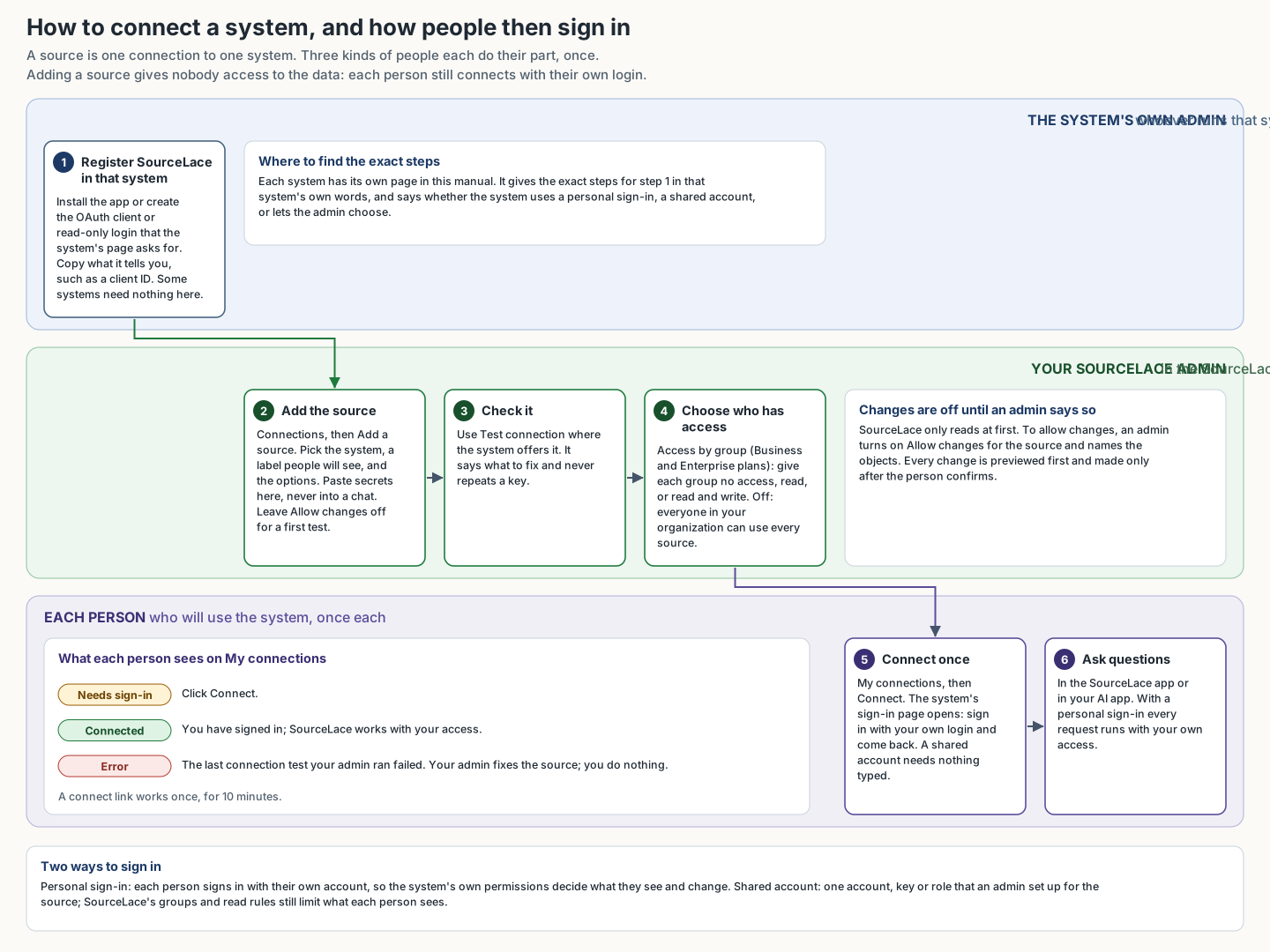 The six steps of connecting a system, and who does each one.Open the picture full size
Each source has:
| Field | What it is |
|---|---|
| System | The specific system it connects to, such as Salesforce, Snowflake or PostgreSQL. Chosen when the source is added and fixed afterwards (people's sign-ins, access rules and saved work are tied to it): to connect another system, add another source. See Connecting your systems for every system. |
| Label | The name people see, such as "Corvanta Salesforce" or "Sales sandbox". Change it at any time; nothing that refers to the source breaks. |
| What it is, in a few words | An optional line that tells this connection from others of the same system, such as "the sales team's sandbox, refreshed monthly". People see it next to the source, and their AI reads it to pick the right connection, or to ask which one is meant. |
| Short name and Connection ID | The short name is suggested from the label (such as sales-sandbox) and yours to change until you save. It makes the connection ID, written kind:name, such as salesforce:sales-sandbox: lowercase letters, numbers, dashes and underscores. The AI, agents, rules and saved work refer to the source by this ID, so it stays fixed after the first save. A taken short name is flagged as you type, with free ones to pick. |
| Options | Settings for that kind, such as a Salesforce login address or a Snowflake account. Each kind's page lists every option. |
| Allow changes and Objects that can be changed | Off by default. See Turning on changes. |
| Include in Search everything | For systems that have a search of their own (files, chat, mail, service desks and Salesforce). On by default. Off leaves the source out of Searching everything; people can still ask it directly. |
| Index field names | For every system that can describe its fields (not mail, calendar, chat, files, sheets, search indexes or health records). On by default. After someone searches for a field, SourceLace reads the names and labels of the system's objects and fields in the background and keeps them encrypted for a day, so the assistant can find a field such as Health Score by a word. It reads names only, never records or values, and it counts as a call to the system for each object (one statement for a whole database on Snowflake, which may start the warehouse): once a day per connection when everyone shares one sign-in, and once a day per person who searches when each person signs in with their own account. Nothing runs when nobody searches. Off stops the background reading and the catalog query of a database: searches then match object names only and say so. Example: leave it on for Salesforce; turn it off for a warehouse you want queried only when someone asks. |
How many sources of each kind you can add depends on your plan's included connectors and the connectors on your contract; connectors you cannot add are marked locked with the reason. A plan or pilot can also cap the number of sources in all, whatever their class (a pilot allows 5 by default); at that number, remove a source before adding another. See Connectors.
Adding a source does not give anyone access to the data in it. Each person still connects the source with their own login, and sees only what that login can see.
Secrets in options. A few kinds take a secret as an option (the client secret for Oracle Fusion and Workday, and the shared secret for a custom connector). It is stored encrypted with your organization's own key, never shown again (the page shows (saved)), and never returned by any API or tool. To keep it while editing the source, leave the field as it is; to change it, type the new one. Type secrets on the Connections page, not into a chat with an AI.
Removing a source also removes everyone's sign-in to it and every group's access settings for it. Adding a source with the same name later starts afresh.
Several connections of one system
An organization can have as many connections of one system as its plan allows: a production and a sandbox Salesforce org, a reporting and an orders database, a shared support mailbox next to people's own. Each is its own source, with its own ID, label, description, options, access by group and sign-ins. Adding one never replaces or changes another, and the plan counts each as one system of its connector class (two Salesforce orgs are two Business systems); the form says what adding one uses before you save.
To add a second connection of a system, click + Add another <system> on its heading on Connections, or open the ⋯ menu on one of its connections and choose Add another <system> like this: the Add a source page opens with the system chosen. + Add another passes only the system; Add another <system> like this also starts from that connection's settings (pick another under Start from an existing connection, or Start empty). Start from an existing connection fills in the settings of a connection you already have, such as the sign-in address or the allowed objects, so a second org takes a minute. Secrets and keys are never copied or shown: enter them again for the new connection. Give it its own label and a short description that says what it is, so people and their AI can tell the connections apart.
Renaming. The label and the description are yours to change at any time, from the connection's details (click its name) or with Edit settings (in the details, or in the connection's ⋯ menu). The connection ID stays what it was when the source was added, so access rules, agents, skills, saved results, audit entries and the AI's references keep working. People and their AI can also name a source by its label, as long as no other source of your organization has the same one.
Two connections with the same label. Each connection needs its own label: saving a label another source already has (ignoring capitals and extra spaces) is refused, and the message names the source that has it. Organizations that gave two connections the same label before this rule keep them, but while they share it, nobody can name either one by that label: people and their AI have to use the connection ID. Connections shows admins a notice for each such label, such as "Two connections share the label 'Sales sandbox' (salesforce:old and salesforce:sandbox)", with Edit next to each one. Open one, give it a label that says which it is, and save; the notice goes away once every label belongs to one connection. The notice covers all your sources, not only those on screen.
| What you see | What it means | What to do |
|---|---|---|
| "Another source already has the label 'X' (id)." when saving | Another connection, the one named, already uses that label | Choose a different label, or rename the other connection first |
| "'X' is the label of 2 sources (id1, id2). Name the one you mean by its id." in a chat or an AI app | Two connections share that label, so it picks neither | Name the source by its ID for now; an admin renames one of them from the notice on Connections |
When several connections of one system exist, the AI sees each one's label and description. When a question does not say which one is meant and more than one could apply, it says which it is using, or asks, rather than silently picking one.
Outside MCP servers: tools waiting for review. When the vendor of an outside MCP server changes the description or arguments of a tool you allowed, SourceLace holds the tool, emails the admins once for the source, and the source's status shows Tools waiting for review. Choose Review tools on the source to compare the allowed and new versions side by side, then Allow the new version or Keep blocked. See Held tools.
Finding a source
Connections is one table, one line per connection, with a list at the left and filters above the table:
- Needs attention (first in the list at the left) shows connections whose last Test connection failed, that still need your own sign-in, or that have tools waiting for review. All connections shows everything. Below them are the categories (CRM and sales, ERP and finance, Databases and so on) that have at least one of your connections, each with how many.
- Plan level shows All, Standard, Business or Enterprise connections only, each with how many; the Plan column says each row's level. See Connectors.
- Search finds a connection by its label, source ID, description or system. Every word you type must appear.
- Status shows only the connections in one state: Connected (you have signed in to it), Needs sign-in (you have not), or Error (the last Test connection of it failed; the state stays until a test passes or you save the connection again). Sign-in shows only those with a personal sign-in or only those with a shared account. With Search everything on, a fourth choice shows whether a connection is searched.
- Click a column heading to sort by it (click again to turn it round); an arrow shows the direction. The columns are Connection, System, Source ID, Plan, Sign-in, Status (with tools waiting for review), Changes and, when Search everything is on, Search everything (hidden until you choose it under Columns). Columns and Copy table work as on every table.
System lists only the systems that have a connection in the list item and plan level you chose, with how many in brackets (All systems (5)), and shows only the connections of the one you pick, such as PostgreSQL; if the system you picked is no longer in the list, it goes back to All systems. Each row is one line: the system's logo, the connection's name (click it for its details; a long name is cut short and hovering shows all of it) and, at the right edge of the cell, the ⋯ menu. The search and filters work together and Clear filters shows every connection again. While you sort by a column, the system headings are left out so the rows are in that column's order; click the heading a third time to go back to the usual order with the headings. SourceLace remembers, in your browser only, which list choice, plan level and sort you used last, so the page opens the way you left it; nothing about your connections is stored there.
Click a connection's name to open its details: what it is, its source ID with a Copy button, how people sign in, its status with Test connection (for systems that can be tested) and the last result, tools waiting for review with Review tools, whether changes are allowed and to which objects, whether it is in Search everything, saved answers, its category and plan level. Edit settings, Add another like this and Remove are at the bottom. Esc closes the details. The ⋯ menu on a row has Details, Edit settings (opens the Edit a source page), Test connection, Review tools, Add another <system> like this, Copy source ID and, under a thin line, Remove…. Connections that SourceLace set up for you have only Details and Copy source ID, with a note that they cannot be changed here. The ⓘ on the Plan, Sign-in and Status headings explain those columns.
Above the table, one line says what your plan includes and how much you use: Standard 3 of 5 · Business 2 connected · Enterprise 0 connected. Its ⓘ explains that each connection is one system and that connectors your plan does not include show as locked when you add a source.
Personal accounts
Once you turn it on, people can add their own extra accounts of a system your organization already uses, without you: a second Gmail or Outlook mailbox, a personal Google Drive, their own SharePoint or OneDrive, or Google Sheets. They do it under My accounts on My connections (Your own accounts). A personal account is not one of your sources: it does not appear on Connections, it does not count against your plan's connectors, and only its owner can see or use it. Only systems with a personal sign-in on the Standard connector class can be added this way; Business and Enterprise systems never.
Your rules for them are under Personal accounts at the bottom of Connections:
| Setting | What it does |
|---|---|
| People may add their own accounts | Off until you turn it on: nobody in your organization can add a personal account before an admin ticks this. Turning it off again stops anyone adding one; accounts that exist stay usable until their owner removes them or you revoke them. |
| Accounts per person | How many one person may have, of all systems together: 3 by default, at most 10. 0 lets nobody add one. |
| Systems people may add | Untick a system to stop new accounts of it. A system nobody can be added of until you have a connection to it on Connections. |
| Groups whose people may not add accounts | People in any of these groups cannot add an account. |
| Allow changes through personal accounts | Off by default: personal accounts are read-only. On: a person may propose a change through their own account (a mail draft, a sheet row), confirmed as always. |
Your other settings apply to personal accounts as they do to your connection of the same system: with access by group on, a person can add and use an account of a system only if their groups give them access to one of your connections of it, and they never get more on their own account than on yours (read-only there is read-only here; an object their groups cannot see stays unseen); your data protection rules for that system apply to what comes back; and a system your SourceLace contact switched off for your organization is off for personal accounts too.
The same panel shows how many personal accounts exist per system and who owns each one, with the connection ID and when it was added, never the owner's label or description. Revoke removes a person's account and their sign-in to it; the audit trail records who revoked whose account. Every call a person makes through a personal account is audited like any other, with the account's connection ID (google_workspace:my-...) as its source. When a person is removed or deactivated, their personal accounts and sign-ins go with their access.
Turning on changes
SourceLace is read-only until you say otherwise. To let people create or update records in a source:
- On Connections, edit the source and turn on Allow changes.
- Under Objects that can be changed, list the objects, separated by commas, such as
Opportunity, Casefor Salesforce,dealsfor HubSpot,incidentfor ServiceNow,customerfor NetSuite,invoicesfor Oracle Fusion,businessTitleChangefor Workday ordraftsfor mail.*allows every object the source supports changes to. - Save. From chat: "Allow writes to Account and Opportunity on salesforce:prod".
Changes also need a plan that includes them. A plan without changes to records refuses every change, whatever these settings say; ask your SourceLace contact. In a pilot, changes are allowed, but each one still needs approval.
Even then, every change is previewed first and applied only after the person confirms it, the person's own permissions in the system still apply, and, with access by group on, their groups must give them read & write on that object.
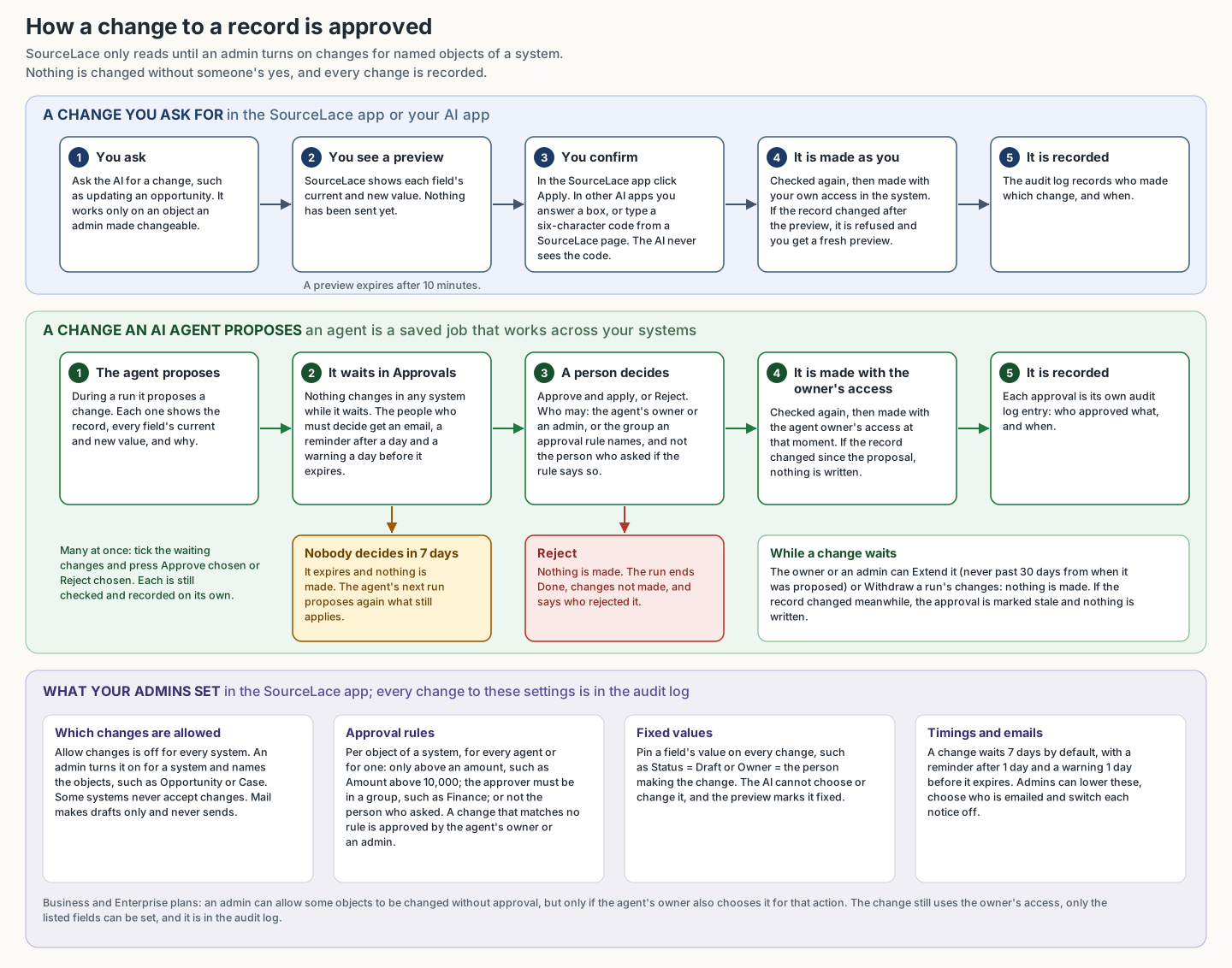 The two ways a change to a record is approved, and what is recorded.Open the picture full size
Some sources never accept changes through SourceLace, whatever this setting says: they are marked read-only on their pages and on the Connections page.
HubSpot, Zendesk and Jira: after you turn changes on or off, or change the objects, people connect that source again, so the system gives their sign-in the matching write permission. Until they do, the system refuses the change and SourceLace tells them to reconnect.
Approval rules and fixed values
Change approvals (in the menu, for admins) holds two kinds of rule for the changes made to your systems. Both are checked by SourceLace whenever a change is previewed, approved and made, and every change to them is in the audit log.
Approval rules decide who must approve the changes agents propose to one object of one source (for every agent, or Only for one agent):
- Only above an amount: a number field and an amount, such as Amount above 10,000. Changes above it, or with no number in that field, wait for a person. Changes at or below it may be made without approval, when the agent's owner chose that for the action, your plan allows changes without approval, and the agent is not in its first days after going live. Leave the amount empty to have every change of the object follow the rule.
- Approver must be in this group: only people in the group may approve, admins included. They see these changes in their Approvals page.
- Not the person who asked: the agent's owner, and whoever pressed Run now, cannot approve their own agent's change (separation of duties).
A change that matches no rule is approved as before, by the agent's owner or an admin. If you delete a group a rule names, nobody can approve the changes it holds until you change the rule; they can still be rejected. On a SourceLace Runner, changes a group rule holds can only be rejected there.
Fixed values pin a field's value on every change to an object, from the chat, from AI apps and from agents: a value you type (such as Status = Draft), the email of the person making the change, or the person's own user ID in that system (for an Owner field; their sign-in to the system must be their own). New records get every fixed value; an update gets the fixed values of the fields it changes. The AI cannot choose or change a fixed value, and previews mark it fixed. An organization can have up to 200 rules and fixed values in all.
Approval emails
When an agent proposes a change that waits for a person, SourceLace emails the people who must decide it: when it starts waiting, a reminder, a warning before it expires, and a notice when it expired. Each email names the agent, how many changes wait, how long the oldest has waited and when the first expires, with a link to Approvals; it never holds the change itself. A person gets at most one email of each kind an hour. If your organization has no email provider set up, nothing is sent and nothing fails: the Approvals inbox, the counts on the Agents tab and the Health page show the same.
Agents → Settings → Approval emails (admins):
- Who: The people who must approve (the agent's owner, or the group an approval rule or a decision names) and The agent's owner are on. Also email admins is off, so admins are spared unless you tick it. Nobody is emailed about a change they cannot see, and everyone can switch these emails off for themselves under Your settings → Notifications. When nobody who must approve can be reached (they left, or the group is empty), the owner and then the admins are told instead, and the email says why.
- When: untick a notice to stop that email for the whole organization.
Limits → AI agents → Approval and going live sets the timings; each can be lowered by an admin within what SourceLace allows:
| Limit | What it does | Default |
|---|---|---|
| Days a change waits for approval | When a change nobody decided expires. | 7 days |
| Time before the first approval reminder | When the reminder goes out and the inbox marks the change overdue. 0 switches it off. Must not come after the warning point. | 1 day |
| Days before expiry to warn | When the warning goes out and the inbox marks the change expiring soon. 0 switches it off. Must be fewer than the days a change waits. | 1 day |
The Health page's People in saved chats tile appears once a saved chat names someone in a system that asks for it (Jira). It says how many people are kept and whether the last report to that system went through; the system's own closed accounts are removed from your saved chats. The page's Approvals waiting tile asks for a look when any change is overdue or expiring, and names the agents. Every situation and what the run then says is in What happens when....
Matching rules
A matching rule tells SourceLace how to recognise the same customer, supplier or person in two systems, such as a Salesforce account and a NetSuite customer (available to every organization). As an admin, you create rules on Business setup → Matching, test them on live data, publish them, and name the people who may edit each one, such as the data owner in Finance who can see the records when you can't. A published rule applies to everyone and to every agent. Your organization can have up to 100 rules. See Matching records across systems.
Access by group
Access by group lets you decide which people can use which sources, and which objects inside a source. For example: Sales can read Salesforce and change Opportunities; Finance can read SAP but not Salesforce.
It is off until you turn it on. While it is off, everyone in your organization can use every source. Access by group is part of the Business and Enterprise plans.
The Groups page is a compact table with one row per group: its name, where it comes from, how many people are in it, how many sources it can use and its sync id. It shows 50 groups at a time. Search finds groups by name, sync id, a person's email or a source, so searching for someone's email shows every group they are in. The Where the group comes from filter shows only groups Synced from Okta / Entra or only groups Made here. Search and the filter are kept in the page's address, Clear filters empties them, and the table can be resized and rearranged like the Agents list. Click a group to open its own page, with tabs for People, Sources and objects (with its read rules), Shared with this group, Managers and, for admins, Settings.
How it works:
- You create groups (such as "Sales") and add people to them. Only people already on the People page can be added. A group's People tab lists its people a page at a time, with a search box. Tick several people to take them out together.
- Each group gets an access level per source: no access, read, or read & write.
- A group can also get a level for one object in a source, such as
Opportunity. That replaces the group's whole-source level for that object: for example "read all of Salesforce, but no access to Opportunity", or "no access to Salesforce, except read on Account". - Someone in several groups gets the most any of their groups gives, object by object.
- Once it is on, someone in no group sees no sources at all. That includes admins: admins can always manage groups, people and sources, but their own data access follows their groups. Put admins in a group if they also use the data. If My connections is empty for you while Connections lists sources, this is why: the page says so and links to Groups. Turning access by group on before any group exists asks you to confirm, because nobody would see any source.
To set it up, open Groups: create the groups, add people, set each group's access per source (and per object where needed), then turn Access by group on. From chat, the admin_groups tool does the same.
Adding many people at once. On a group's People tab, paste a list of email addresses (one per line, or separated by commas), or upload a CSV file with one address per row. Download an example CSV gives you a file to fill in. People who are not on your People page yet are skipped and listed afterwards, so you can invite them and add them again.
It only narrows access, never widens it. People still sign in to each source with their own account, so they see a record only if both their groups and the system itself allow it. Read & write does not by itself let anyone change data: the source must also allow changes to that object, and each change is confirmed. Groups are checked again when a change is applied, so taking access away also stops changes that were previewed but not yet applied.
Other spellings of a table name. A read rule, row limit or field protection for an object also applies when a person types another spelling of its name, such as a table with or without its schema. For a Marketing Cloud data extension, use its key (the External Key shown in Marketing Cloud) in a group's access or read rule; if you type the name people see in the list, SourceLace saves it under the key, or asks you for the key when it cannot tell which data extension you mean. Where SourceLace cannot tell whether two spellings are one object, the rule applies to both, but a group's access is not extended to the other spelling: on databases, BigQuery, MongoDB and Oracle Fusion, access you give on orders does not also cover Orders, so give access on each spelling your people use.
Which objects a query reads. SourceLace works this out from the query before anything is sent: the object after FROM in SOQL, every table after FROM and JOIN in SQL, the entity set in OData, the object in JSON queries. When a query may reach objects it does not name (related fields such as Account.Name, subqueries, joins in some languages, $expand), it needs read access to the whole source. Someone with only object-level access gets a message asking them to query one object at a time. On Lake sources, and on some database sources, SourceLace reads the whole question, so people with access to only some tables can also ask questions with subqueries or named sub-questions, as long as every table they read is one they may read.
Groups from your identity provider (recommended for larger organizations). Each group can carry a sync id: the Okta group name, or the Microsoft Entra group's object id. A group with a sync id, or one pushed by SCIM, is labelled Synced from Okta / Entra and its people are locked: your identity provider keeps them up to date, so the People tab is read-only and says "Change members in your identity provider." You still decide what the group can use. Groups without a sync id are labelled Made here and you manage their people by hand, which suits small organizations. To take a synced group back, clear its sync id on the Settings tab. When your organization has no groups yet, the Groups page recommends connecting your identity provider first. See Group sync and SCIM provisioning.
Read rules
Read rules narrow access by group further: they decide which rows of an object a group's people see, and how many rows one answer may return. They are set per group, per source and object, on the group's Sources and objects tab, in the Read rules section.
- Row conditions. Pick a field, an operator (is, is not, is one of, is none of, and for numbers and dates less than, at most, more than, at least) and a value or a list. A rule's conditions all apply together. Rows with no value in the field are left out.
- Row cap. The most rows one answer may return, for one object or for the whole source.
- A plain-English preview says what the group will see before you save, such as "People in EMEA Sales see only rows of Opportunity in Salesforce where Region is EMEA and Stage is not Closed, at most 500 rows per answer."
Example. Your Snowflake source uses one shared account, so Snowflake cannot tell your people apart. Give the EMEA Sales group read on Snowflake and a read rule on ORDERS: REGION is EMEA. Ana in EMEA Sales then gets only EMEA orders, whether she asks in the chat, through an agent, from an AI app or with Search everything, and so does every agent that runs as her. A totals question counts only EMEA orders too.
How they work:
- Everywhere a read happens. The rules apply in the chat, in agents (which run with the person's groups, as always), in AI apps, in Search everything, in questions across systems and when a record is opened or a change is previewed. A source whose objects have row conditions is left out of Search everything for that group, and a question SourceLace cannot apply the rules to is refused with a suggestion to ask it another way. Answers say when a row cap cut them short.
- Several groups: the most permissive result. As with access, someone in several groups gets the most their groups allow. Only groups that give read on that object count. If any of them has no row conditions there, the person sees every row; otherwise they see the rows matching any one group's conditions. If any of them has no row cap, there is none; otherwise the largest cap applies.
- Shared-account and personal sources. Read rules matter most for sources everyone reaches through one account (warehouses and databases), where the system cannot tell people apart. For sources each person signs in to with their own account, the system's own permissions still apply first, and the read rule narrows further.
- Data protection stays on. A condition can name a field your data protection rules mask; the field stays masked for everyone.
- Only admins change them. A group's managers see its read rules but cannot change them. Read rules apply only while access by group is on, and only to sources with rows (business systems, warehouses and databases), not to files, mail or chat. Each group can have up to 200. Every change is in the audit trail, and each answer's audit entry names the rules that applied, never their values.
A read rule, a data protection rule or a group's access to an object cannot be saved on a table name that has spaces, quote marks or invisible characters at its edges or around one of its parts. Such a rule could never match the name SourceLace reads, so it is refused when you save it.
When something goes wrong
| What you see | What it means | What to do |
|---|---|---|
| "That table name has spaces, quote marks or invisible characters in a place where it cannot be read as written. Remove them and ask again." | The name you saved a rule on, or that a question named, has a space or an invisible character at an edge (often from copying and pasting), or a quote mark around a part while rules exist. SourceLace refuses it, before any rule or permission is looked at, so that it cannot read around a rule. | Retype the name by hand without the extra spaces, quote marks or invisible characters, then save or ask again. A space inside a name (Q1 Sales) is fine. |
Group managers
An admin can name managers for a group (up to 20 each, unless your organization's limits say otherwise), on the group's Managers tab. Managers are people in your organization who look after that group without being admins. They do not need to be in the group themselves.
- Managers see their groups. Groups appears in their menu, listing only the groups they manage.
- Managers keep the people up to date. On a group made here, they add people (one at a time, by pasting emails or from a CSV) and take people out, just as an admin can. On a synced group, the people still come from your identity provider, so there is nothing for them to change there.
- Managers share with their groups. They can share their skills with the groups they manage, as optional or required, and see and stop what is shared with those groups on the Shared with this group tab. There they also set the group's own business terms, starter questions and default sources (see Group terms, starter questions and default sources).
- Managers review suggestions for their groups. When someone in the group suggests one of their skills for it, its managers approve it (as optional or required, after editing it if they like) or decline it with a reason, under Suggestions in the menu (see Reviewing suggestions).
- Managers do not decide what the group can use. They can see the group's sources and objects, but only admins change them, rename the group, delete it or choose its managers.
Admins choose and remove managers. Someone who leaves your organization stops managing every group. From chat, the admin_groups tool's add_manager and remove_manager actions do the same.
Choosing groups elsewhere. Wherever you pick groups, such as who may create agents, subscribing a group to a shared agent, who may subscribe, sharing a project or sharing a skill, you type to search and the groups you choose appear as small tags. It works the same however many groups you have.
Removing someone from the organization takes them out of every group. Chats saved before access was taken away keep what they already show; new questions follow the current groups.
Sharing levels
SourceLace has three sharing levels, from widest to narrowest: the organization (everyone), a group (such as Sales or Finance) and just me. Projects are shared workspaces that work like a small group. What is shared higher up reaches everyone below it, and when two things share a name the closest one wins: yours, then your project's, then your group's, then the organization's. Groups do not nest: if you need "Sales EMEA", make it a group of its own (or let your identity provider push it). The Groups page shows this picture.
| Level | Who sets the rules | Who builds and shares | Who gets it |
|---|---|---|---|
| Organization | Admins choose which sources each group may use, and the data protection rules, business terms, starter questions and default sources | Admins share with everyone, as optional or required | Everyone in the organization |
| Group | Admins pick the group's sources. Admins and the group's managers set its own business terms, starter questions and default sources | Anyone in the group shares with it; its managers and admins can make something required | Everyone in the group |
| Just me | Nothing to set | You, with chosen people (to use or to edit) or your groups. You can also suggest a skill for a group you are in or the whole organization | You, plus anyone you share with |
What you can share today. Skills can be shared with named people, with groups and with the whole organization (see Sharing skills), and suggested upward for a group or the whole organization (see Reviewing suggestions). Projects can be shared with people, groups or the whole organization. Groups decide which sources and objects people can use, and group managers keep a group's people up to date. Each group's page has a Shared with this group tab listing the skills shared with it, and the group's own business terms, starter questions and default sources (see Group terms, starter questions and default sources); admins and the group's managers can change them there.
Who may share. Anyone can share what they make with the groups they are in. A group manager can share with the groups they manage, and make a skill required for them. Admins can share with any group and with the whole organization. Edit rights only go to named people: a group or the whole organization can use a skill, not change it.
Widest sharing allowed. On Sharing, choose how far anyone, admins included, may share: Just me (nothing is shared), Groups (named people and groups) or Whole organization (the default). Shares made before a change stay until someone removes them.
Suggesting upward. Things shared higher up trickle down, and good ideas travel up: anyone can suggest one of their own skills for a group they are in, or for the whole organization (see Suggesting a skill). A suggestion waits for review:
- For a group: the group's managers and admins review it.
- For the whole organization: admins only.
- Nobody approves their own suggestion while someone else could review it. If you are the only person who could, you may.
- Nothing can be suggested wider than Widest sharing allowed, and a suggestion made before you narrowed it cannot be approved past the new setting.
Coming soon: sharing agents and templates the same way.
Reviewing suggestions
Group managers open Suggestions in the menu to see Suggestions for my groups: the suggestions for the groups they manage, newest first, 25 at a time with Show more and a search box (skill, person or group). Admins see the same page with every group's suggestions and the organization's, and the waiting ones also appear at the top of Business setup → Review, each labelled From <person> for <group or Organization>. The count of waiting suggestions is shown next to Suggestions in the menu and on the Business setup overview.
Each suggestion shows what the skill does, the person's note, and its full text. Then:
- Approve: choose Optional (on for everyone it reaches; each person can switch it off) or Required (always on).
- Edit, then approve: change the name, description or steps first.
- Decline: write a short reason. The person who suggested it sees it.
What approving does. It shares a copy of the skill as suggested, not the person's own skill, so their later changes never silently change what you approved. For the whole organization, the copy becomes one of the organization's skills, which admins look after. For a group, the copy belongs to whoever approved it and is shared with the group; they, and the group's managers, can change or stop sharing it like any other skill. If a skill with the same name is already there, rename it with Edit, then approve. The person who suggested it keeps their own skill and is offered, never forced, to delete it.
Suggested matching rules. Anyone can suggest a matching rule they drafted in a chat, for the whole organization, so admins review it, with Approve and publish, Edit, then approve and Decline. See Reviewing suggested rules.
Deleting a group declines its waiting suggestions. Every suggestion, approval, decline and withdrawal is in the audit trail with who, which group (or the organization) and the kind of item, never the skill's text or the reasons.
Group instructions, terms, starter questions and default sources
Four things trickle down from the organization to its groups, so each group's chats start in the right place:
- Instructions. What the assistant always follows, such as "Amounts in EUR". The organization's apply to everyone; a group's apply to its people after the organization's, in chats and in agent runs as one of them. See Instructions.
- Business terms. The organization's terms are under Business setup → Business terms. A group can give a term its own meaning, because "pipeline" can mean something different to Sales than to Finance. For the group's people, the group's meaning wins over the organization's for the same name or other name; everyone else keeps the organization's meaning. If someone is in two groups that define the same term, the group whose name comes first from A to Z wins (Finance before Sales). The AI in the SourceLace app, agents and your AI apps all get the result as the one skill "Business terms".
- Starter questions. The example questions shown in an empty chat. People see their groups' questions first, then the organization's. Each is plain text, one short line.
- Default sources for chat. The sources offered first, and already chosen, when someone starts a chat (Sales sees Salesforce first). People can untick them. Default sources only change the order and what is chosen to start with. They never give access: people are only offered sources their groups already let them use, and they still sign in to each source with their own account.
Who changes them. On a group's Shared with this group tab, admins change any group's, and a group's managers change their own groups'. Managers can make a source a default only if the group may already use it; only admins decide which sources a group may use. The organization's instructions, starter questions and default sources are under Chat defaults → Chat start and instructions (admins). None of these can change data protection rules or source access, which stay with admins.
Limits. A group can have up to 100 business terms, and 20 starter questions; the organization up to 20 starter questions; each list up to 10 default sources. Instructions can be up to 8,000 characters for the organization and 4,000 for a group. See Limits. Deleting a group deletes its instructions, terms, starter questions and default sources. Every change is in the audit trail, with who made it and in which group, never the text.
AI settings
These apply to the assistant in the SourceLace app only. MCP clients use their own AI model, which SourceLace does not choose.
Open AI model:
-
Included with SourceLace (the default): the assistant uses Claude, through SourceLace's Anthropic account. Your plan includes a number of AI questions per seat a month, shared by the organization, counted in credits. After them come any prepaid questions, then extra use up to the maximum you set under AI use on the same page (0 turns it off). At that maximum, chat in the app pauses until the 1st of the next month, or until you raise the maximum or add your own key. See AI use. The Usage and Billing pages show your organization's use.
-
Your own Anthropic key: paste a key from your organization's Anthropic account. Anthropic then bills you directly and questions use no SourceLace credits. The key is encrypted with your organization's own key, never shown again, and never returned by any API. Send a new key only when you want to change it.
-
Your own OpenAI key: paste a key from your organization's OpenAI account (create one under API keys in the OpenAI platform; it starts with
sk-). OpenAI then bills you directly, and questions use no SourceLace credits. When you save, SourceLace makes one free call to OpenAI to check that the key works and can use the chosen model, so a mistyped key or a model your account cannot use is caught straight away. The key is stored and protected exactly like an Anthropic key. -
Your own Google Gemini key or Your own Mistral key: paste a key from your organization's account with that provider (Google AI Studio for Gemini, Mistral's console for Mistral; look for API keys). The provider then bills you directly, and questions use no SourceLace credits. SourceLace keeps no list of these providers' models, because they change often, so you type the model's name exactly as the provider writes it in its list of models. When you save, SourceLace looks that model up with the provider using your key (a free request, not a question), so a mistyped key or name is caught straight away. The lookup shows the provider knows the model; it cannot show that your account has credit or access to run it, which the first question will. The key is stored and protected exactly like an Anthropic key. Choose the provider from the Provider list, which starts with SourceLace (Claude included).
-
Your own Azure OpenAI resource or Your own Amazon Bedrock account: for organizations that run their AI inside their own Microsoft Azure subscription or Amazon Web Services (AWS) account, so the conversation goes to a service in your own cloud account and region. These need more than a key, so each has its own steps below (Azure OpenAI, Amazon Bedrock). Your cloud provider bills you directly, and questions use no SourceLace credits.
If chat or the AI model page says the included AI isn't switched on for this service yet, the included AI has not been set up where SourceLace runs: contact SourceLace support, or choose your own provider's key meanwhile.
You can also choose which model the assistant uses: the AI model page lists the models available for each choice. Sonnet is the default: a good balance of answer quality and cost. Opus is larger and gives the most thorough answers, and Haiku is smaller and faster for simple questions. On the included AI a larger model uses more credits for the same question, and some models may be offered only on higher plans, so the list on your AI model page shows what your plan allows. With your own key, every model your provider offers in this list is available and your provider bills the use.
SourceLace keeps one key for your organization. To switch between your own providers, paste the other provider's key. Switching to Included with SourceLace and back keeps your saved key. Saved chats continue with whichever model you choose.
The Usage and Billing pages show token counts and, for each model SourceLace has a price for, an estimated cost at the provider's list prices. For a model SourceLace has no price for, such as a name you typed in for your own key, the Usage page shows "price unknown: your provider bills you" instead of a guess, and counts the questions but leaves them out of the cost total. With your own key, your provider's bill is the real figure.
If the assistant cannot answer, chat says why: for example that the provider refused the key, that your provider's account has run out of credit or reached its spending limit, that the provider is busy (try again in a minute), or that your account cannot use the chosen model (choose another on the AI model page).
What the assistant sends to the AI model is described in Security and privacy.
Using your own Azure OpenAI resource
Azure OpenAI is Microsoft's service for running OpenAI's models inside your own Azure subscription. You create a resource (your own copy of the service, with its own address), put a model in it as a deployment (a named, ready-to-use copy of a model), and give SourceLace the address, the deployment's name and a key. Microsoft's own documentation is at Azure OpenAI documentation.
What your Azure admin does in Azure
- Who: someone who can create resources and see their keys in your Azure subscription, in a region where Azure OpenAI is available to you.
- Create the resource. In the Azure portal, choose Create a resource, search for Azure OpenAI, and create one. The name you give it becomes its address (
https://<name>.openai.azure.com). - Deploy a model. In the resource, open its model deployments (reached from the resource's page, in Microsoft Foundry) and create a deployment of the model you want. Write down the deployment name you choose: that is what SourceLace needs, not the model's own name.
- Copy the address and a key. In the resource's Keys and Endpoint page, copy the Endpoint and KEY 1.
- Check the resource's network settings. If you limited which networks may reach the resource, SourceLace's servers must be allowed. Ask SourceLace support for the addresses to allow.
What you do in SourceLace
- open AI model, and choose Your own Azure OpenAI resource under Provider.
- Paste the Endpoint, type the Deployment name, and paste the key. SourceLace adds the rest of the address itself.
- Choose Save AI settings. SourceLace sends one tiny request to check them, which costs your organization a fraction of a cent. How to check it worked: the page says "Saved. New messages use these settings." and the next question in chat is answered.
When something goes wrong
| What you see | What it means | What to do |
|---|---|---|
| "The endpoint starts with https://..." or "That is not an Azure OpenAI resource address" | The address is not a resource address of Azure's own services | Copy the Endpoint again from Keys and Endpoint: only the address, with no path or port |
| "Azure OpenAI refused that key" | The key is wrong, was regenerated, or belongs to another resource | Copy KEY 1 again from the same resource whose endpoint you entered |
| "Your Azure OpenAI resource has no deployment called ..." | The deployment name does not exist in this resource | Use the deployment's name as shown under your deployments, not the model's name |
| "...is not allowed to use this deployment" | The resource's access settings stop this key | Check the resource's access and network settings in Azure |
| "...has run out of quota" | The deployment's quota is used up | Raise the quota or wait, in Azure |
| "Azure OpenAI could not be reached" | The address is wrong, or the resource's network settings block SourceLace | Check the endpoint, then the network settings (step 5) |
Using your own Amazon Bedrock account
Amazon Bedrock is the Amazon Web Services (AWS) service that runs AI models from several companies, including Anthropic's Claude, inside your own AWS account and region (the AWS location where it runs, such as us-east-1). You give SourceLace an access key (a pair of codes that lets a program act as an AWS user), the region and the model's ID. AWS's own documentation is at Amazon Bedrock documentation.
What your AWS admin does in AWS
- Who: someone who can manage users and their permissions (IAM) and Amazon Bedrock in your AWS account.
- Turn on the model. In the Amazon Bedrock console, in the region you will use, enable access to the model you want (Model access). Write down the region and the model's ID, or the inference profile ID if AWS asks you to use one for that model.
- Make a user for SourceLace. In IAM, create a user with no console sign-in, used only by SourceLace. Give it a policy that allows exactly these two actions on the models you chose (or on all Bedrock models):
bedrock:InvokeModelandbedrock:InvokeModelWithResponseStream. - Create an access key. On that user's Security credentials tab, create an access key (the use "application running outside AWS"). Copy the Access key ID and the Secret access key now: AWS shows the secret only once.
What you do in SourceLace
- open AI model, and choose Your own Amazon Bedrock account under Provider.
- Type the AWS region, the Model ID, the Access key ID and the Secret access key.
- Choose Save AI settings. SourceLace sends one tiny request to check them, which costs your organization a fraction of a cent. How to check it worked: the page says "Saved. New messages use these settings." and the next question in chat is answered.
Both parts of the key are stored encrypted with your organization's own key, never shown again and never logged. Rotate the access key in AWS from time to time and paste the new pair here.
When something goes wrong
| What you see | What it means | What to do |
|---|---|---|
| "Enter both the AWS access key ID and the secret access key" | Only one half of the key was entered | Enter both |
| "That does not look like an AWS access key ID" or "...secret access key" | A code was copied incompletely, or from the wrong place | Copy both again from the access key's creation page |
| "AWS refused that access key" | The pair is wrong, was deleted or made inactive | Check the key's status on the user's Security credentials tab, or create a new one |
| "This AWS key may not use ... in this region" | The user's policy does not allow the model, or the model is not enabled in this region | Check the policy (step 3) and Model access (step 2) in that region |
| "Amazon Bedrock does not know a model called ..." | The model ID is wrong for this region | Copy the model ID or inference profile ID from Amazon Bedrock again, and check the region |
| "Your AWS account has reached a Bedrock quota" or "busy" | AWS is limiting your use | Wait, or raise the quota in AWS |
| "Amazon Bedrock could not be reached" | The region is wrong or AWS is unavailable | Check the region, then try again |
Full chats: compacting automatically
On the Chats tab of Chat defaults, Full chats has one switch, Compact full chats automatically, on by default. When a person's chat is nearly full (85% of the AI model's window), SourceLace forgets old big results and, if that is not enough, summarizes the older questions before the next question is sent, so the chat normally can carry on instead of ending with a message to start a new chat. The person sees it in the chat ("Earlier conversation was summarized") and can undo it.
What it uses and keeps. A summary is one small call to your organization's own AI model, counted in credits like a question (nothing extra with your own AI key; your provider bills you). The summary is kept inside the chat, encrypted with your organization's key, for as long as the chat is kept, and is deleted with it. Forgetting results makes no AI call. The saved chat always keeps every message.
What the admin does.
- Open Chat defaults and the Chats tab.
- In Full chats, tick or untick Compact full chats automatically, then press Save.
- To check it worked, open any chat and select the gauge at the top: Compact automatically says On, or turned off by your admin.
Switch it off if your policy is that summaries must not be made without a person asking. People can still compact a chat by hand, and each person can switch it off for themselves. Your SourceLace contact does not change this setting for you.
When something goes wrong.
| What people see | What it means | What to do |
|---|---|---|
| "This chat has grown too long for the AI model" | The chat is full and automatic compaction was off or could not make it small enough | Press Compact all in the Context panel, or New chat from summary |
| "The AI model is not set up yet" when pressing Compact | No AI model is set up | Set it up on the AI model tab |
| Compact fails with a message from the AI model | The summary could not be written; nothing changed | Try again, or check the AI model page |
Tables in answers
On the Chats tab of Chat defaults, Tables in answers chooses what answers start with for the tables the assistant read on the way: Answer only (the default for anyone who has never saved this setting), Folded or All tables. With Answer only, each answer shows the tables the person asked for and folds the rest under Built from N tables. It applies to everyone, except in projects whose owner chose otherwise and for people who chose for themselves under Your settings → Chats. See Tables in answers.
Reading answers aloud
On the Chats tab of Chat defaults, Reading answers aloud decides, for everyone in your organization, whether the chat reads answers out loud. Asking by voice only ever turns speech into text.
- Each person chooses (the default): answers stay text. Every answer has a Read aloud button, and each person can tick Read answers aloud when I ask by voice under Options below the chat box for themselves.
- Never read answers aloud: the Read aloud buttons and the tick box are hidden.
- Read answers aloud after a spoken question: answers to questions asked by voice are read out loud. A person can untick the box under Options below their chat box, and their own choice wins.
The choice applies the next time the chat page is opened or reloaded. Reading aloud uses the speech feature of each person's own browser, and SourceLace sends nothing for it; depending on the browser, that feature may be provided by the browser's company (for example Google, Microsoft or Apple). The whole voice feature (the microphone too) can still be switched off for your organization by your SourceLace contact.
Copy buttons
On the Chats tab of Chat defaults, Copy buttons decides who sees the Copy buttons: in the chat, Copy answer, Copy your question, Copy on code blocks and Copy table; and Copy table above the lists across SourceLace (the Audit log, Agents, People and the rest).
- Everyone (the default): the buttons are shown to everybody, as they always were.
- Only these groups: only people in the groups you choose see them. Choosing no group hides them for everyone. A team that pastes tables into spreadsheets can keep them while everyone else does not see them.
This hides the buttons on answers, code blocks and tables wherever they are shown (the chat, a project's pinned tables, an agent's summary), and Copy table on the lists. It hides the buttons only. People can still select text, take a screenshot or download a file, so it is a way to reduce copying by habit, not a way to stop data leaving. The Copy buttons you use to set things up, such as the address for your identity provider, stay. Each change is written in your audit log with who made it and when. People see the change the next time they open the app or reload the page.
Attachments in chat
On the Chats tab of Chat defaults, Attachments in chat lets people attach photos (screenshots and pictures, not documents) to their questions. It is off for everyone until you do two things, and nobody at SourceLace can do either for you:
- Accept the statement. Read it, tick I have read this statement and accept it for my organization, type your full name and choose Accept. The statement says that a photo goes to the AI provider and that data protection rules cannot check what is in a picture; that it is kept encrypted with the chat and deleted when the chat is deleted or your retention period ends; that an older stored copy can remain for up to 30 days, and that backups and the AI provider's own copy follow their own rules and are not deleted by SourceLace; and that your organization is responsible for what its people attach. Your typed name, the date and the version of the statement are written in your audit log, and your other admins are emailed.
- Choose who may attach. Everyone, or Only these groups. Until you choose, nobody can. Choosing Only these groups with no group means nobody.
You can Withdraw at any time: photos stop for everyone at once, the choice of who may attach is cleared (accepting again starts from nobody until you choose again), and your other admins are emailed. If the statement changes, or the admin who accepted stops being an admin, the setting turns itself off until a current admin accepts again. Photos already in chats stay with those chats and go with them. Photos work today only with the AI included with SourceLace and with your organization's own Anthropic key. With any other provider (OpenAI, Azure OpenAI, Amazon Bedrock, Google Gemini or Mistral) the photo button is not offered, so nobody can attach a photo, even after the admin accepts. When your organization uses one of the others, the Attachments in chat box says so, because accepting changes nothing for your people until the provider changes. See Attaching photos for what people see.
Where this came from
Every column of a traced answer always has a button saying which field in which system it came from. On the same tab, Where this came from chooses what each table starts with: On request (the default, buttons only), Open by default (the system and field under every column's name) or, where your organization uses matching rules, Open by default, and ask for record ids in future answers (also asks the assistant to fetch each record's id in answers asked from now on, and starts with the record ids shown). Projects and people can choose otherwise, as for tables. See Where this came from.
Data protection
Open Data protection to choose what the AI may see of the values SourceLace reads: hide a field so it never reaches the AI, mask it so the AI gets a placeholder instead of the value, or allow it as it is. Detectors can mask email addresses, phone numbers, US Social Security numbers, payment card numbers and IBANs inside any text, and you can add your own patterns, such as employee numbers. People you allow still see the real values in the SourceLace app, and changes are made with the real values. The rules apply to people's own AI apps, the assistant in the SourceLace app and AI agents alike. Everything is off until you turn it on. See the Data protection page of this manual for every rule.
Pages that update by themselves
You never need to refresh these pages: they change on their own as things happen. That covers the Runners page (a runner added, revoked, back, running a new version, or gone quiet), message queue connections and their counts, audit streams, the Spend tab, a webhook's call log, Getting started, Readiness, approvals and runs. Some pages are for checks you ask for, such as Check again on Health: they stay as they are until you press it.
Runners
If your organization wants some AI agents to run inside its own network (your cloud account or data center), your SourceLace contact can turn on runners. Runners are offered on the Enterprise plan only, on request, with their own fees and terms (see Who can have a runner). Everything else in SourceLace runs on SourceLace's cloud. Admins then see a Runners page: add a runner there, as a Production or a Test runner within what your contract includes, and your IT department installs it. Agents run on SourceLace unless their owner picks a runner under Where it runs, and you can require a runner for every agent under Agents → Settings. A runner uses your organization's own AI key, keeps each person's source sign-ins and every run's results on your network, and sends SourceLace only each run's status and counts. The Runners page shows whether each runner is healthy. See Runners: agents inside your own network in this manual.
The audit trail
Every tool call is recorded in your organization's audit trail, whether it succeeded, was refused or failed: from the SourceLace app, from every MCP client, and from admins. Admins see it on the Audit log page (on the Business and Enterprise plans), with filters by time, person, action, source, object and outcome, a SourceLace staff view of what SourceLace's staff did (see What SourceLace staff did), and a text search of the person, action, source, object, record id and error (not the words inside a query's text). Newest entries come first, 25 at a time: Show more adds the next ones. Above the list, SourceLace says how many entries match, up to 10,000 (more shows as 10,000+). New entries recorded while you read do not move the list: search again to see them. In the person, action, source and object filters, type a few letters to find the one you want (see Finding entries).
Each entry holds metadata only: when, who, which tool and source, the query text, the object, the record id, the names of changed fields, how many rows came back, the outcome, the error type if any, and how long it took. It never holds row values, field values, passwords or tokens. The query text and the rest of each entry are stored encrypted with your organization's own key; admins see them as written on the Audit log page and in exports. Entries from before SourceLace began encrypting them are encrypted in the background, by the hourly housekeeping, with nothing for you to do; what you see and the checks do not change.
Entries are chained by hashes: each entry includes the hash of the one before it, so an entry that was changed, removed or reordered breaks the chain, which SourceLace's integrity check finds. SourceLace checks the audit trail automatically every day and alerts your admins if anything does not match. You can also check it yourself at any time and export it with its proof. See Checking the audit trail. If SourceLace cannot write an entry, the call fails rather than returning data it could not record. Before a change is sent to a system, SourceLace records that it is starting.
Sign-ins (Google, Microsoft and single sign-on, including refused ones), every change to people, sources, groups and single sign-on settings, and every time a skill is shared, unshared or handed to a new owner are recorded too.
Finding entries
The Person and Object filters on the Audit log page are type-to-search: click the filter, type a few letters of an email address or an object name (such as Opportunity), and pick one of the matches. What you type there is not put in the page's address. Only names that appear in the period you chose are offered, ten at a time, so the list stays short however many people or objects your organization has. Pick Everyone or All objects to remove the filter. The Action and Source filters work the same way, and every filter combines with the others and with the text search.
The period. When sets which entries are listed: Last hour, Today, Last 7 days, Last 30 days, This month, or Custom range, where you give a start and an end with the date and the time (for example Monday 9:00 AM to 11:30 AM to look at an incident). The Audit log starts on the last 7 days. Times are in your own time zone, which is named under the control. The period, Outcome and the SourceLace staff view are kept in the page's address, so a copied link shows the same period; the Person, Action, Source and Object choices and the words you type in Search (or to find a match in those filters) are not, because they can be email addresses or names from your systems. A refresh or the Back button therefore starts with none of them chosen. SourceLace remembers your last period on this screen in this browser. Clear filters goes back to the last 7 days with no other filter. If the start is not before the end, the page says so and lists nothing until you fix it.
The table. Drag the edge of a column heading (or select it and press the left and right arrow keys) to make a column wider or narrower, and use Columns above the table to move a column or hide one. A long query is cut to two lines: press Show full text to read all of it. Your layout is remembered for you on every device you sign in on, and Reset columns goes back to the standard one.
Checking the audit trail
SourceLace checks the audit trail automatically every day and alerts your admins if anything does not match. You can also check it yourself at any time and export it with its proof.
The Audit log page shows when the trail was last checked, such as "Last checked automatically: 8 Oct 2026, all entries match". Admins can press Check now to check it at once, a few minutes apart; each check you start is recorded in the audit trail.
If a check finds a problem, your organization's admins get an email, the Audit log page shows a red note ("The last automatic check found a problem. Export the audit trail and contact support."), and the problem is recorded in the audit trail as audit_check_failed. You get one alert per problem, not one every night. The note goes away once a later check passes. When you see it, export the audit trail as JSON and contact support.
Exporting the audit log
Export on the Audit log page downloads every entry that matches the period, filters and search you set, not only the ones on screen. Choose the format:
- CSV opens in Excel, Google Sheets or any spreadsheet: one row per entry with when, who, the action, source, object, record id, field names, the query text, rows, outcome, error and the entry's hashes. A cell that starts with
=,+,-or@gets a leading', so a spreadsheet never runs it as a formula. - JSON is for a security review or your own tools. It lists who exported it and when, the period and filters, and chain: whether your organization's whole audit trail still verifies (
"ok": true) or the first entry that does not. Each entry carries its number, the hash before it, its own hash and the exact text that was hashed, so anyone can recheck an entry with SHA-256 without SourceLace.
An export has no size limit: it downloads while it is written, so a long period takes a little longer, and it holds the entries up to the moment you pressed Export. If a download stops part way, export again. An export holds the same metadata as the page, never row values, field values, passwords or tokens. Each export is itself recorded in the audit trail, with its period, filters and number of entries. To export everything, clear the filters and pick the whole period your plan keeps.
Streaming the audit trail
On the Business and Enterprise plans, SourceLace can send each new audit entry to your own security tools as it is written. On the Audit log page, under Streaming, press Add a destination and choose one of:
| Destination | What you enter | What SourceLace sends |
|---|---|---|
| Signed webhook | An https:// address, and a signing secret of at least 16 characters |
Each batch as a POST, signed in the X-SourceLace-Signature header (sha256= and the HMAC-SHA256 of the body with your secret), with the batch's id in X-SourceLace-Batch |
| Splunk HTTP Event Collector | The collector's address (such as https://http-inputs-yourcompany.splunkcloud.com), a token, and optionally an index and source type |
Each line of the batch as one event |
| Amazon S3 bucket | The bucket, its region, a folder (optional), and an access key that may write there | One file per batch |
| Google Cloud Storage bucket | The bucket, a folder (optional), and an HMAC key of a service account that may write there | One file per batch |
| Azure Storage container | The storage account's address, the container, a folder (optional), and a SAS token for the container that allows creating and writing | One file per batch |
- What a batch holds: up to 500 entries as JSON Lines. The first line is the batch's proof: its id, the numbers and hashes of its first and last entries, and the hash of the entry before it, which is the last hash of the batch before. Each other line is one entry with its number, its hashes and the exact text that was hashed, the same as the JSON export. So your tools can check every entry with SHA-256 and see that no batch is missing. Entries are metadata only, as on the Audit log page.
- When: within seconds of an entry being written. A new destination gets the entries written from the moment you add it; for older ones, use Export.
- Never skipped, never lost: each destination keeps its own place in the trail. If it is down or refuses a batch, SourceLace tries again after a short wait that grows to at most an hour, and the destination's status shows the error. Other destinations are not held up. A batch that may have arrived before a failure is sent again with the same id and the same content, so your tools can drop the copy. Bucket files are named by the batch id, so a batch sent again replaces its own file.
- Status: each destination shows when it last sent, how many entries wait, and its last error with when it tries again. Change edits it, or pauses it; Remove stops it.
- Send a test batch sends your newest entry now, as a batch whose id starts with
test-(bucket files go in atest/folder), and says whether it arrived. A test does not move the destination's place. - Secrets (the signing secret, token, keys and SAS token) are stored encrypted with your organization's key. They are never shown again, only "(saved)": leave the field empty when you change a destination to keep them.
- Adding, changing, removing and testing a destination are recorded in the audit trail, with its kind and name, never its secret. Sending batches is not recorded, so streaming never adds entries of its own.
- If your plan changes to one without the Audit log, sending stops and each destination keeps its place, so it carries on from there if the plan includes it again.
Older entries
SourceLace may keep entries older than a few months in its encrypted archive storage instead of its database. You see no difference: the Audit log page, Export and the checks read them as before, and the chain of hashes still runs unbroken from your oldest entry to your newest. Reading a period from many months ago can take a few seconds longer. The person, action, source and object pickers offer names from the recent months; filters and the text search still find older entries. A count of a filtered search over a long period may show as "N+" when counting it exactly would take too long. Entries are still deleted when they are older than your plan's audit history.
What SourceLace staff did
Every change SourceLace's staff make to your organization is written in your own audit log, under the name of the person who made it. That covers creating your organization (the first entry of your audit log), your plan and its limits, seats, add-ons and connectors, discounts, prepaid credits, billing and invoices, pilot extensions, your contract and renewals, admins and contact, pausing and resuming, single sign-on, features, runner licenses, stopping or releasing agents, and setup and onboarding help. Each entry says what changed in names and numbers; staff's own notes and reasons stay with SourceLace (a reason you are shown anyway, such as why required single sign-on was turned off, is included).
Reading is recorded too, where staff look at something of yours to help you: each search they run in your audit log and each export they make (operator_audit_read and operator_audit_export, with the period and filters they used), when they look at your setup readiness, and when they download your setup or discovery answers. Other reads that support your account, such as looking at your plan or usage figures, are not written in your audit log. Staff never see data from your systems.
To see all of it in one place, press SourceLace staff at the top of the Audit log page. It lists only the entries staff wrote on your account, newest first; filters, search and Export work on it as on All activity. Staff entries have actions that start with "SourceLace staff:" and a SourceLace staff mark next to the person. They do not count as your organization's use.
Changes that apply to every organization at once, such as SourceLace's list prices, are not in your audit log, because they are not about your organization; a change to your own prices, such as a discount, is.
The same entries are the usage meter: the Usage page counts calls and rows per person, action and source, and AI questions and their estimated cost (where SourceLace has a price for the model).
Data retention
Open Data retention (under Administration, Trust and health). It shows every timer in one place: the short ones for query results, which you can change here, and the longer records (chat history, files saved with chats, agent run records, agent approvals), with links to where they are set. You can only make these shorter or smaller than SourceLace's limits, which the page shows ("SourceLace allows up to 30 minutes"). Leave a box empty to use SourceLace's maximum. Every change is recorded in the audit trail. See also Data retention controls.
Hold results for
How many minutes SourceLace keeps a query's full result so follow-up steps (questions across systems, charts, documents) can use it, from 1 up to 30. After that it is deleted and a follow-up question runs the query again.
Rows kept per result
The most rows SourceLace keeps from one query as an ordinary result, up to 2,000. Left at the most, a query that returns more keeps every row, up to 250,000, in an encrypted, short-lived engine on its own, so totals and counts cover all of them whichever AI asked; more than that is cut and says it covers only the first rows, and questions across systems go further after you confirm the plan (Asking across systems). If you lower it (for everyone or for one source), results are cut at your number and say they cover only the first rows, and that source's rows are not fetched into the engine at all.
Change previews can be applied for
How many minutes a previewed change stays ready to apply, from 1 up to 10. After that the person must ask for the change again.
Where results are held
SourceLace's results store is shared by SourceLace's servers, encrypted with your organization's key, so a result survives a restart until its time is up. Server memory only never writes results there: they are gone on any restart or deploy, and with several servers a follow-up step that lands on another server runs the query again.
Forget on close
On by default. A chat's results are deleted as soon as the person closes the chat, switches to another one or signs out, instead of when the timer ends. The chat itself stays. Deleting a chat always deletes its results.
Per-source limits
Shorter times or fewer rows for one source, such as 2 minutes for an HR system and 30 for the CRM. A result that combines several sources gets the strictest of their limits.
How long things are kept
| What | Kept for |
|---|---|
| Query results | In server memory, or encrypted in a short-term store, for at most 30 minutes, then gone. Never written to a database. Shorter, per source, memory-only and "forget on close" are set on the Data retention page (see Data retention controls). |
| Saved chats in the SourceLace app, with the files made in them (listed on Artifacts) and project pins to them | 30 days after the chat was last used, by default. Admins set the period on the Chats tab of Chat defaults, from 1 day up to the plan's longest (90 days on Team, 1 year on Business, 10 years on Enterprise). Starter has no chat in the SourceLace app, so there are no saved chats to keep. Anyone can delete their own chats at any time. Old chats are deleted automatically, checked every hour. |
Changes waiting for confirmation (propose_change) |
At most 10 minutes, held like query results, then discarded if not confirmed. |
| AI agents' runs (summaries and what triggered them) and changes waiting for approval | Encrypted. Deleted with the agent, and after the same retention period as saved chats. A change waiting for approval expires after 7 days. See AI agents. |
| Skills and projects | Until someone deletes them. |
| Each person's sign-ins to sources | Until they disconnect, are removed from the organization, the source is removed, or the system ends the sign-in. |
| The audit trail | Kept for your plan's audit history (90 days to 7 years). Older entries are deleted automatically, checked every hour; the entries kept still verify. |
See Security and privacy for what is stored and how it is protected.
Status, usage and invoices
- My connections (everyone) shows whether the AI assistant is ready and, for each source, whether you are connected and how your calls went in the last 24 hours. The old Connection status page is part of it.
- Health (admins, under Administration, Trust and health) is one look at whether what your organization relies on is working. See Health.
- Usage (admins) shows calls, rows and AI use over any period, per person, model, action and source. Each table lists the biggest first unless you choose another order with Sort by, and shows 25 rows at a time, with Show more and a search box when there are more; the filters let you type to find a person, model, action or source. See Searching and sorting usage.
- Usage also shows this month's AI credits: included, prepaid and extra use.
- Usage has an AI spend tab: the month's credits against your plan, a daily chart, where the credits went (by place, group, agent, person and model, each searchable and exportable as CSV), monthly budgets for groups and agents that warn or stop at 100%, and cheaper models your agents' tests support. See AI spend.
- Usage also lists the days a system or the AI was busy for your organization: how many requests waited a moment for room, and how many were answered "busy, try again". See When a system is busy.
- Billing (admins) shows how your organization pays, your prices and discounts (runners and Premium support included, on a runner contract), one-time charges such as the runner onboarding fee, Stripe's invoices with PDF links, and AI use month by month with the "Extra AI questions" line. See Billing.
Health
Health (admins, under Administration, Trust and health) answers one question: is everything your organization relies on working? It shows a line at the top saying how many things need a look, then a tile for each area, with the problems first. Each tile ends in a link to the page that has the detail.
- Connections: for each source, how many lookups failed or were refused in the last 24 hours. A source that fails most of its calls is a problem; a few failures are worth a look. Open Connections to test or fix it.
- AI agents: failed runs this week, paused agents and changes waiting for approval, with the agents that failed. Shown when your plan has agents.
- Audit trail: whether the daily check of the audit trail found every entry intact, and whether each streaming destination is delivering (Business and Enterprise).
- Usage and plan: seats used and the notices you would see on other pages, such as AI use or engine rows near the plan's limit.
- Sign-in: sign-ins that were refused (for example, single sign-on is required) or failed in the last 7 days.
A tile that cannot be read just now says Unknown and the rest still show; Check again reads everything again. The tiles only read what SourceLace already keeps and show no data from your systems. Members do not see Health; they see their own sources, and how each is working for them, on My connections.
Emails when something needs attention
SourceLace can email you when something on Health newly needs attention. Nothing is sent until you choose where: at the bottom of the Health page, in Alerts (admins only), add up to five email addresses under Send alerts to. Any plain address works; it does not need to belong to someone in SourceLace, so a shared mailbox such as ops@yourcompany.com is fine. Then choose Tell me when; all of these are on once you have an address, and you can switch off any you do not want:
- a connection keeps failing,
- an audit stream stopped delivering,
- AI agents keep failing,
- the daily audit check found a problem,
- many sign-ins were refused or failed.
Choose Save alerts. The email names the problem (using the names you gave your connections and streams) and links to the Health page. It contains no data from your systems. At most one email goes out a day for the whole organization, and only when something new needs attention: a problem that stays is not repeated, and one that is fixed and later comes back is told again. To stop all Health emails, remove every address and save. Changes are recorded in the audit log, without the addresses.
Emails need email to be working for SourceLace; if you stop getting emails you expect, look at the Health page itself, which always shows the current state.
Searching and sorting usage
Each table on the Usage page has its own Search box and Sort by choice:
| Table | Search finds | Sort by |
|---|---|---|
| Questions to the AI model | A person or a model | Highest cost (the default), most questions, most input tokens, most output tokens, person or model (A to Z) |
| Lookups and changes | A person, an action or a source | Most calls (the default), most rows, person, action or source (A to Z) |
| Shared agents | A shared agent's name or owner | Most runs (the default), most credits, most people, most failed, most skipped, name or owner (A to Z) |
Every word you search for must appear in the row. Search and order apply to the whole table for the period and filters you chose, not only the rows on screen, so Show more carries on in the same order. Rows that are equal are always listed in the same order, so no row is shown twice or skipped.
The period. When sets the period the Usage figures cover: Last hour, Today, Last 7 days, Last 30 days, This month, or Custom range, where you give a start and an end with the date and the time (for example the 1st of last month to the 1st of this month, for last month's figures). Usage starts on the last 30 days counted back from now (not whole calendar days), so the first day of the chart may be a partial day and the totals can differ a little from the earlier whole-day periods. The old one-click Last month and This year buttons are gone: choose Custom range instead, for example the 1st of last month to the 1st of this month for last month's figures. Times are in your own time zone, which is named under the control. The period and your filters (Person, AI model, Action and Source) are kept in the page's address, so a copied link shows the same figures, and SourceLace remembers your last period on this screen in this browser. Clear filters goes back to the last 30 days with no other filter. By day, By month and By year only change how the chart adds the figures up. The Shared agents table is the one exception to the dates: it counts back from now for as many days as your period covers (its heading says "in the last N days"), so a custom range in the past shows the same number of days ending today, not the dates you chose.
The tables. The tables on Usage, including AI spend, work like the Agents list: drag a column heading's edge to resize it, use Columns to move or hide a column, and your layout is remembered for you. Amounts are formatted as before and stay at the right of their columns. On AI spend, Set budget and Change sit under the group's or agent's name, so they are always in view; on a phone each row is a card.
Changes
Some changes take several steps, sometimes in other products or with SourceLace's staff. Changes (linked from the Getting started page, or at the address /runbooks) lists them as change runbooks you can start, such as Switch single sign-on provider. A runbook works like Getting started: its steps are in order, each says why it matters and links to its instructions, and SourceLace ticks a step off when it sees it done. The steps that need someone else, such as your identity provider's admin or SourceLace's staff, say so.
- Start a change when you begin it. Only one of each runs at a time.
- Confirm done on a step SourceLace can't see, such as removing an app from another product.
- Cancel a change you no longer need. Finished and cancelled changes stay in the list, newest first.
Some changes are started by your SourceLace contact with you, such as adding the SourceLace Runner (Enterprise plan, on request). They show in the same list.
New since you set up. When a SourceLace release asks organizations that are already set up to do something, the step appears on your Getting started page under New since you set up, with what to do and why. It appears only once the release note is published.
Getting help
Email support@sourcelace.com. The Help centre in the app starts an email with your organization and browser filled in. Please don't send passwords, keys or customer data. Security questions: security@sourcelace.com.
Short answers to the questions admins ask most are in the FAQ, especially Governance and admin controls and Audit and logging.