Installing a runner
The step-by-step installation of a SourceLace Runner, with Docker Compose on one Linux machine or with Helm on Kubernetes: complete examples to copy, what each setting means, and a check after every step with the exact command and what you should see.
Before you start, tick off the pre-installation checklist in Runner requirements and planning, which also explains the words used here. When something does not work, see Runner troubleshooting. Upgrades, backups and moves are in Looking after a runner.
The examples use the organization Corvanta, the image 123456789012.dkr.ecr.us-west-2.amazonaws.com/sourcelace-runners/runner-corvanta:0.4.0 and the runner page https://runner.corvanta.internal. Use your own values: Get the runner shows your own image name and registry host.
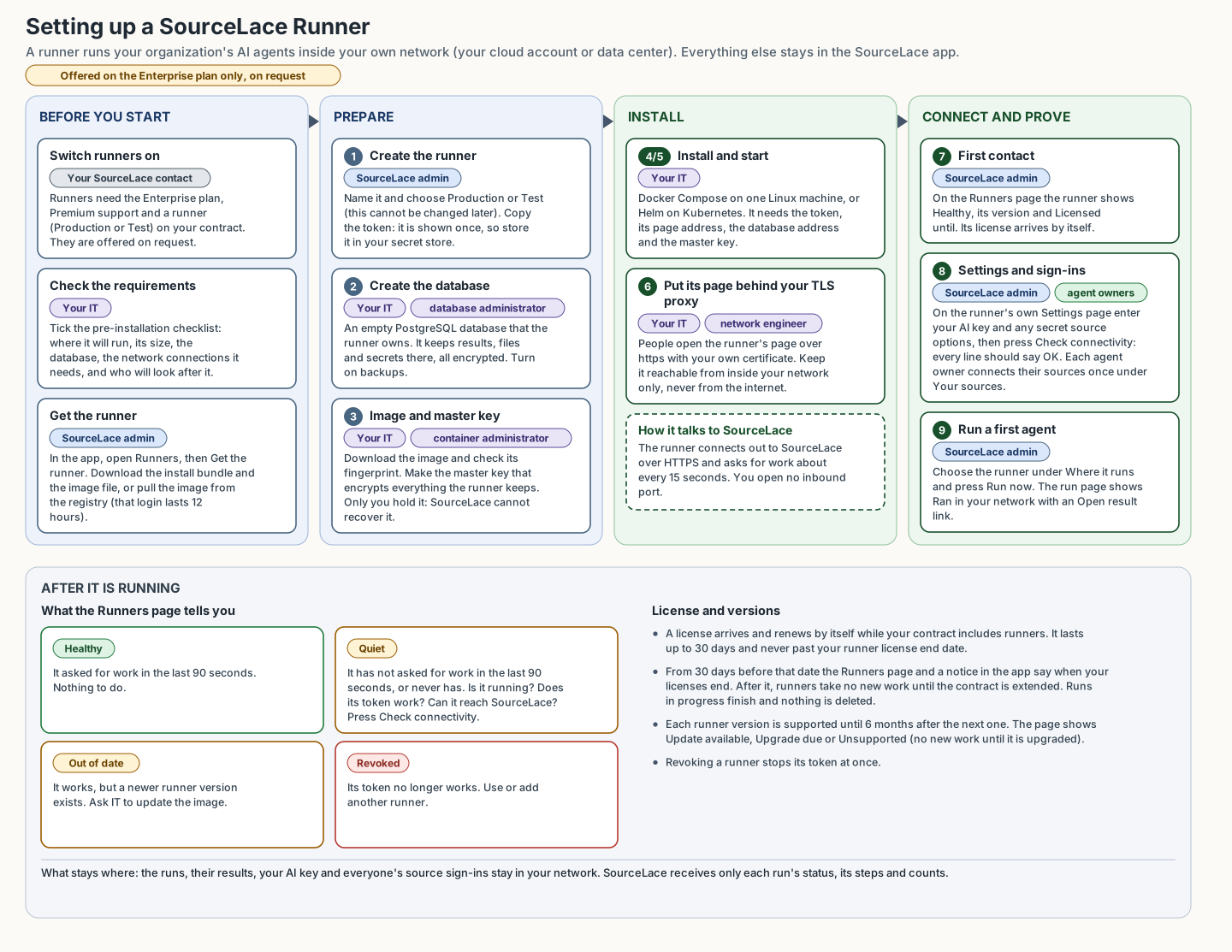 The four phases of setting up a runner, and who does each step.Open the picture full size
Overview
| Step | Who | Takes about |
|---|---|---|
| 1. Create the runner in SourceLace | SourceLace admin | 5 minutes |
| 2. Create the database | Database administrator | 15 minutes |
| 3. Download the image and make the master key | Container administrator | 15 minutes |
| 4. Install with Docker Compose or 5. Install with Helm | Container administrator | 30 to 60 minutes |
| 6. Put the runner's page behind your TLS proxy | Network engineer | 30 minutes |
| 7. Check the first contact with SourceLace | SourceLace admin | 5 minutes |
| 8. Sign in and finish the runner's settings | SourceLace admin | 15 minutes, plus OAuth apps |
| 9. Run a first agent | SourceLace admin | 10 minutes |
These times are estimates for planning.
Get the runner
What this does and why: it gets you the files to install from, behind your SourceLace sign-in, so you know they come from SourceLace and are made for your organization. Who: a SourceLace admin of your organization (the panel shows only for admins, once SourceLace has turned runners on for you). Nothing here needs a licence or role in any other product.
- In SourceLace, open Runners and scroll to Get the runner.
- Press Download the install bundle. You get a zip (such as
sourcelace-runner-0.4.0.zip) holdingdocker-compose.yml,runner.env.example, the Helm chart for Kubernetes (sourcelace-runner-chart-...tgz), a shortREADME.txtandSHA256SUMS, the fingerprint of each file. - Pick a version in the table (the newest is at the top; install a version marked Current or Update available, never Unsupported). Each row shows when it was released, its digest (the image's fingerprint,
sha256:...), how long it is supported and what changed in it. Then either:- press Image file to download the image as a file. The download starts at once; the link works for 5 minutes only, so press the button again if it expired. The page shows the file's SHA-256. This needs the machine you download on to reach SourceLace's download storage over HTTPS; or
- press Pull from registry to get a registry login: the image name to pull (such as
123456789012.dkr.ecr.us-west-2.amazonaws.com/sourcelace-runners/runner-corvanta:0.4.0), the registry host (ending in.dkr.ecr.us-west-2.amazonaws.com), the user nameAWSand a password. The login is read-only, reaches only your organization's images, and works for one hour: pull the image right away, and press the button again for a new one if it has expired. Copy the password straight into thedocker logincommand shown (Step 3); do not keep it.
SourceLace keeps your organization's images in its private registry on Amazon ECR (Amazon Web Services' container registry) while each version is supported, and for about a month after. Images you have already pulled or loaded keep working whatever happens in the registry.
Every download link and registry login you get here is written to your audit log.
Check it worked:
- In the folder where you unpacked the bundle,
sha256sum -c SHA256SUMSprintsOKfor every file. - For an image file:
sha256sum runner-corvanta-0.4.0.tar.gzprints the SHA-256 the page showed. Thendocker load -i runner-corvanta-0.4.0.tar.gzprintsLoaded image: 123456789012.dkr.ecr.us-west-2.amazonaws.com/sourcelace-runners/runner-corvanta:0.4.0. - After pulling or loading,
docker image ls --digests 123456789012.dkr.ecr.us-west-2.amazonaws.com/sourcelace-runners/runner-corvantashows the digest the table shows for that version (a loaded file shows the image ID instead; the pulled image shows the digest).
If it did not work: "There is no image file of version ... for your organization yet": use Pull from registry, or ask your SourceLace contact. "Your organization's runner image of version ... is not ready yet": SourceLace makes your images within a day of runners being switched on for you and of each new version; try again later, or pick another supported version. A link that answers "Request has expired" or "AccessDenied": it was older than 5 minutes; press Image file again. A checksum that differs: do not use the file; download it again, and contact SourceLace if it still differs.
Step 1: Create the runner in SourceLace
What this does and why: it registers the runner with SourceLace and makes the runner token, the secret the runner uses to prove who it is. SourceLace keeps only a fingerprint of the token, so it is shown once.
- In the SourceLace app, open Runners. (It shows once your SourceLace contact has switched runners on for your organization.)
- Under the list, type a name for the runner, such as "Frankfurt VPC" (up to 100 characters; you can rename it later).
- Choose Production or Test. This cannot be changed later (Production and Test runners).
- Press Add a runner.
- The token appears, starting with
slr_. Press Copy and store it in your secret store at once. Give it to the container administrator through the secret store, not by email or chat. - Press Done.
Check it worked: the runner is in the list with the status Quiet and Last seen "Never". That is expected: nothing has started yet.
If it did not work: "SourceLace Runners are not turned on for your organization" or a refusal naming the plan, Premium support or no runners left of that label: your contract does not include another runner of that label; ask your SourceLace contact. If the token was lost before it was stored, revoke that runner and add a new one.
Step 2: Create the database
What this does and why: the runner keeps everything (results, files, approvals, people's sign-ins and secrets, all encrypted) in its own PostgreSQL database. It creates its own tables when it starts, so it needs an empty database it owns.
Skip this step only to try the runner out with the small database in the Docker Compose example.
-
Connect to your PostgreSQL server as an administrator (for a managed service, its main admin user), for example with
psql -h db.corvanta.internal -U postgres. -
Create the user and the database it owns. Choose a long random password without
@,/,:or?(or see the note below):CREATE ROLE runner WITH LOGIN PASSWORD '<long random password>' CONNECTION LIMIT 30; CREATE DATABASE runner OWNER runner ENCODING 'UTF8';CREATE ROLEmakes a user that can sign in, with room for the runner's up to 15 connections and some to spare.CREATE DATABASE ... OWNER runnermakes the database and gives it to that user, which is all the rights the runner needs. No extensions are needed. -
Turn on backups for this database in your PostgreSQL service.
-
Write down its address, in this form:
postgresql://runner:<password>@db.corvanta.internal:5432/runnerTo require an encrypted connection, add
?sslmode=requireat the end. If the password has@,/,:,?or%, write them as%40,%2F,%3A,%3Fand%25in the address.
Check it worked: from the runner machine, psql "postgresql://runner:<password>@db.corvanta.internal:5432/runner" -c "select current_user, version();" prints runner and a PostgreSQL 16 or 17 version. (Install the PostgreSQL client for this check, or run it from any machine on the same network path.)
Step 3: Download the image and make the master key
What this does and why: it checks that the registry login and registry access work, and makes the master key that encrypts everything the runner keeps. Only you hold it; SourceLace cannot recover it.
If you downloaded the image as a file (Get the runner), copy it to the runner machine, run docker load -i runner-corvanta-0.4.0.tar.gz and go on at point 3; otherwise pull it:
-
On the runner machine, sign in to the registry with a fresh login from Pull from registry (Get the runner), using the host the page shows:
docker login 123456789012.dkr.ecr.us-west-2.amazonaws.com --username AWS --password-stdin--password-stdinmakes Docker read the password from what you type or paste next, so it does not stay in your command history. Paste the password and press Enter, then Ctrl+D. You should seeLogin Succeeded. Docker remembers this login for this machine user until it expires, one hour after you got it; if a pull then fails with "unauthorized", get a new login and sign in again. -
Download the image (your own name and version):
docker pull 123456789012.dkr.ecr.us-west-2.amazonaws.com/sourcelace-runners/runner-corvanta:0.4.0It ends with
Status: Downloaded newer image for .... Once pulled, the image stays on the machine: you need a new login only to pull another version.Check it is the image SourceLace built for you:
docker image ls --digests 123456789012.dkr.ecr.us-west-2.amazonaws.com/sourcelace-runners/runner-corvantalists each version you downloaded with its digest, a fingerprint of the image that starts withsha256:. It must be exactly the digest shown for that version under Get the runner. If it differs, do not use the image: contact SourceLace. (docker pullalso prints it, on the lineDigest: sha256:....) -
Make the master key:
docker run --rm --entrypoint sourcelace-keygen 123456789012.dkr.ecr.us-west-2.amazonaws.com/sourcelace-runners/runner-corvanta:0.4.0This starts the image's key maker only, prints one line of about 44 characters ending in
=, and removes the container. Nothing is sent anywhere. -
Store the line in your secret store now, labelled with the runner's name. You need it in the next step and for every restore.
Check it worked: docker image inspect 123456789012.dkr.ecr.us-west-2.amazonaws.com/sourcelace-runners/runner-corvanta:0.4.0 | grep '"User"' prints "User": "10001:10001", (the unprivileged user the runner runs as), and the key is in your secret store.
Never make a new key for a runner that already has data: what the old key encrypted could not be read any more. To change it, see Changing the master key.
Step 4: Install with Docker Compose
What this does and why: Docker Compose starts the runner (and, in the example, a small PostgreSQL) from one file, and restarts it after a crash or a reboot.
4.1 Put the files in place
sudo mkdir -p /opt/sourcelace-runner
sudo chown "$USER" /opt/sourcelace-runner
cd /opt/sourcelace-runner
# copy docker-compose.yml and runner.env.example here, from the install bundle (Get the runner)
cp runner.env.example runner.env
chmod 600 runner.env
chmod 600 lets only you read runner.env, since it will hold the token and the master key.
4.2 Fill in runner.env
A complete runner.env, with every setting the runner reads. Lines starting with # are ignored.
# Keep prod: the runner then refuses to start without its own database and master key.
SOURCELACE_ENV=prod

# The runner token from step 1.
SOURCELACE_RUNNER_TOKEN=slr_<the rest of your token>

# The runner page's https address inside your network, without a / at the end.
SOURCELACE_PUBLIC_URL=https://runner.corvanta.internal

# Where the runner asks for work. Leave as is.
SOURCELACE_CONTROL_URL=https://sourcelace.ai

# The master key from step 3.
SOURCELACE_ENCRYPTION_KEY=<the line sourcelace-keygen printed>

# Optional: your organization's own AI key. Easier to enter on the runner's Settings page instead.
# SOURCELACE_RUNNER_AI_KEY=sk-ant-...

# Optional: how many runs at the same time (default 2).
# SOURCELACE_AGENT_PARALLEL_RUNS=2

# Recommended: large results on disk instead of in memory (4.4).
SOURCELACE_ENGINE_DIR=/var/lib/sourcelace

# Optional: make the large-results engine use less memory than it would choose itself.
# SOURCELACE_ENGINE_MEMORY_MB=1024

# Optional: your outbound proxy.
# HTTPS_PROXY=http://proxy.corvanta.internal:3128
# NO_PROXY=.corvanta.internal,10.0.0.0/8

# Optional: your own certificate authorities, for TLS inspection or internal certificates (4.5).
# SSL_CERT_FILE=/etc/sourcelace/ca-bundle.pem
| Setting | What it is | Example | Common mistake |
|---|---|---|---|
SOURCELACE_ENV |
Keep prod. With it, the runner refuses to start without its own database and master key, so nothing is lost at a restart. |
prod |
Changing it to make a start error go away: fix the database or key instead. |
SOURCELACE_RUNNER_TOKEN |
The runner token from step 1. Required. Never shown or written to the log. | A long value that starts with slr_; copy it whole, exactly as SourceLace showed it |
Quotes or a space copied with it; the token of another runner; the token of a revoked runner. |
SOURCELACE_PUBLIC_URL |
The runner page's https address. SourceLace links "Open result" here, sign-ins come back here, and OAuth apps use it. | https://runner.corvanta.internal |
http:// (the runner refuses to start); the machine's own name instead of the name on the certificate; localhost. |
SOURCELACE_CONTROL_URL |
Where the runner asks for work. Leave it unless your SourceLace contact gives you another address. Must be https. | https://sourcelace.ai |
Putting the runner page's address here. |
SOURCELACE_ENCRYPTION_KEY |
The master key from step 3. Required with prod. To change it later, see Changing the master key. |
the line sourcelace-keygen printed |
A new key for an existing runner; a made-up password (it must be the generated key, or a random secret of at least 32 characters). |
SOURCELACE_RUNNER_AI_KEY |
Optional: your organization's own AI key, Anthropic (sk-ant-...) or OpenAI (sk-...). Kept encrypted on the runner, like a key entered on its Settings page. |
sk-ant-... |
Leaving the # in front, so it is ignored. |
SOURCELACE_AGENT_PARALLEL_RUNS |
How many runs the runner runs at the same time, 1 to 100 (default 2). See Sizing. | 4 |
Raising it without giving the runner more memory. |
SOURCELACE_ENGINE_DIR |
The folder for large results; it must match the folder mounted in 4.4. | /var/lib/sourcelace |
Setting it without mounting the folder, so the runner cannot write there. |
SOURCELACE_ENGINE_MEMORY_MB |
Only lowers the memory the large-results engine uses (it sizes itself otherwise). | 1024 |
Setting it higher than the machine has: the runner uses what fits and warns at start. |
SOURCELACE_TRUSTED_PROXY_HOPS |
How many proxies between your users and the runner each add an address to the X-Forwarded-For header. The default, 1, is right for one reverse proxy such as the example further down. Set 0 when nothing sits in front of the runner. The runner counts a caller under the address the last proxy added. |
0 |
Leaving 1 when nothing sits in front: then a caller can choose the address it is counted under. |
HTTPS_PROXY, NO_PROXY |
Your outbound proxy (Outbound proxy). | http://proxy.corvanta.internal:3128 |
Forgetting NO_PROXY for internal systems. |
SSL_CERT_FILE |
A file of trusted certificate authorities that replaces the built-in list (4.5). | /etc/sourcelace/ca-bundle.pem |
A file with only your company's authority, so public sites fail. |
The Compose file itself sets SOURCELACE_MODE=runner and DATABASE_URL; do not add them to runner.env.
4.3 Walk through docker-compose.yml
The example file from SourceLace, part by part:
| Part | What it does | Change it? |
|---|---|---|
image: ${SOURCELACE_IMAGE:?...} |
The runner image. You give its name and version when you start, so the file never names a version itself. | No: set SOURCELACE_IMAGE when you start. |
read_only: true |
The runner's own files cannot be changed. | No. |
tmpfs: /tmp:size=20g |
A temporary folder of up to 20 GB, kept in memory. | Only to make it smaller on a small machine. |
env_file: runner.env |
Reads your settings. | No. |
SOURCELACE_MODE: runner |
Starts the image as a runner. | No. |
DATABASE_URL: postgresql://runner:runner@postgres:5432/runner |
The database: the example's own small one. | Yes, for your own database: put your address from step 2 here. |
ports: "127.0.0.1:8000:8000" |
The runner's port 8000, reachable only from this machine, for a TLS proxy on the same machine. | Only if your TLS proxy is on another machine: use this machine's internal address instead of 127.0.0.1, and allow only the proxy to reach it. |
depends_on: postgres |
Waits for the example's database. | Remove it with your own database. |
restart: unless-stopped |
Starts it again after a crash or reboot, unless you stopped it. | No. |
The postgres service and the runner-postgres volume |
The example's small database, with a fixed password, for trying it out. | Remove them with your own database. |
4.4 The folder for large results
By default large results go to the temporary folder, which the example keeps in memory. Give them a folder on disk with about 50 GB free:
-
Make the folder and give it to the runner's user (number 10001):
sudo mkdir -p /srv/sourcelace-runner/engine sudo chown 10001:10001 /srv/sourcelace-runner/engine sudo chmod 700 /srv/sourcelace-runner/engine -
In
docker-compose.yml, under therunnerservice, add (the example file has these lines, commented out):volumes: - /srv/sourcelace-runner/engine:/var/lib/sourcelace -
In
runner.env, keepSOURCELACE_ENGINE_DIR=/var/lib/sourcelace.
Results in this folder are encrypted and deleted when they expire; it needs no backup.
4.5 Your own certificate authority (optional)
Only if your network inspects TLS, or the runner must reach systems with internal or self-signed certificates:
-
Make one PEM file with the public authorities and yours, for example on Ubuntu or Debian:
sudo mkdir -p /etc/sourcelace
cat /etc/ssl/certs/ca-certificates.crt /path/to/corvanta-root-ca.pem | sudo tee /etc/sourcelace/ca-bundle.pem >/dev/null
sudo chmod 644 /etc/sourcelace/ca-bundle.pem
(On Red Hat family systems the public bundle is
/etc/pki/tls/certs/ca-bundle.crt.) -
Mount it into the runner, read-only, under
volumes:of therunnerservice:- /etc/sourcelace/ca-bundle.pem:/etc/sourcelace/ca-bundle.pem:ro -
In
runner.env, setSSL_CERT_FILE=/etc/sourcelace/ca-bundle.pem.
4.6 Start the runner
cd /opt/sourcelace-runner
export SOURCELACE_IMAGE=123456789012.dkr.ecr.us-west-2.amazonaws.com/sourcelace-runners/runner-corvanta:0.4.0
docker compose up -d
export sets the image for this terminal session; up -d starts the containers in the background. Docker prints Started (or Running) for each container. To avoid typing the image each time, put SOURCELACE_IMAGE=123456789012.dkr.ecr.us-west-2.amazonaws.com/sourcelace-runners/runner-corvanta:0.4.0 in a file named .env next to docker-compose.yml; Docker Compose reads it by itself.
4.7 Check it worked
-
docker compose psshows the runnerUpand, within about a minute,(healthy). -
docker compose logs runnershows lines like these, and no line starting withERRORorWARNING:sourcelace:Runner::INFO:sourcelace:Database schema is at version 57. INFO:sourcelace:Large-results engine: 3,900 MB memory (...), 2 CPUs (...), 51,200 MB free disk for the engine folder, ... INFO: Application startup complete.The numbers differ on your machine. If you set the AI key in
runner.env, you also seeRunner: the organization's AI key from the environment is in use (anthropic). -
curl -sS http://127.0.0.1:8000/healthprints:{"status":"ok","version":"0.4.0","commit":"...","auth":"none","database":"ok"}"status":"ok"means the runner answers;"database":"ok"that it reaches its database;"version"is the runner's version.
If the runner stops right after starting, docker compose logs runner names the setting to fix: see When the runner does not start.
Then continue with the TLS proxy.
4.8 A second instance, for failover (optional)
What this does and why: a second machine running the same runner takes its runs over if the first one fails, with nobody doing anything (Failover). Both use your shared PostgreSQL (not the example database in docker-compose.yml) and the same settings.
- Point the first machine at your shared PostgreSQL: in
docker-compose.yml, set the runner'sDATABASE_URLto your database's address, and remove the examplepostgresservice. - On the second machine, repeat 4.1 to 4.6 with the same
docker-compose.ymland the samerunner.env(the same token, master key, page address and database). Optionally addSOURCELACE_RUNNER_INSTANCE=frankfurt-2to itsrunner.env, andfrankfurt-1on the first, so the Runners page names them clearly. - In your TLS proxy, send the runner page's address to both machines (port 8000 on each), with a health check on
/health.
Check it worked: within a minute, the Runners page in SourceLace shows "2 of 2 instances asking for work" under the runner's health, with both names. To test failover, stop one machine's runner (docker compose stop runner): the page shows "1 of 2", and new runs go to the other.
Step 5: Install with Helm on Kubernetes
What this does and why: the Helm chart from the install bundle runs the runner on your cluster with the same settings: one pod, read-only files, no extra privileges, a 20 GB temporary folder and a 50 GB folder for large results on the node's own storage, and an ingress for the runner's page.
-
Create a namespace and use it in every command below:
kubectl create namespace sourcelace-runner -
Put the image in your own registry, so the cluster can download it whenever it needs to. A registry login from SourceLace lasts only one hour, and Kubernetes downloads images again when it moves the runner to another node, so do not give the cluster SourceLace's login. From a machine where you pulled the image (step 3) or loaded the image file:
docker tag 123456789012.dkr.ecr.us-west-2.amazonaws.com/sourcelace-runners/runner-corvanta:0.4.0 registry.corvanta.internal/sourcelace/runner-corvanta:0.4.0
docker push registry.corvanta.internal/sourcelace/runner-corvanta:0.4.0
Sign in to your own registry first if it asks (
docker login registry.corvanta.internal, with your own account).docker taggives the image a second name in your registry (registry.corvanta.internalstands for yours, such as your Amazon ECR, Azure Container Registry, Google Artifact Registry, Harbor or Artifactory);docker pushuploads it there. The push prints adigest: sha256:...line, normally the same one Get the runner shows. If your registry needs a sign-in to pull, create a pull secret for it in this namespace as your registry's documentation describes, and name it underimagePullSecretsbelow. -
Save the runner's secrets. The master key comes from step 3:
kubectl -n sourcelace-runner create secret generic corvanta-runner-env \
  --from-literal=DATABASE_URL='postgresql://runner:<password>@db.corvanta.internal:5432/runner' \
  --from-literal=SOURCELACE_ENCRYPTION_KEY='<the master key>' \
  --from-literal=SOURCELACE_RUNNER_TOKEN='slr_...'
You can add
--from-literal=SOURCELACE_RUNNER_AI_KEY='sk-ant-...', or enter the AI key on the runner's Settings page later. If you keep secrets in a secrets manager, create the same secret through your usual tool (such as External Secrets); the names of the keys must stay the same. -
Save the certificate for the runner page's name as a TLS secret:
kubectl -n sourcelace-runner create secret tls runner-corvanta-internal-tls \ --cert=runner.corvanta.internal.crt --key=runner.corvanta.internal.key -
Write your values file,
corvanta-runner.yaml, starting from the example runner values:mode: runner image: repository: registry.corvanta.internal/sourcelace/runner-corvanta tag: "0.4.0" pullPolicy: IfNotPresent imagePullSecrets: [] # or the pull secret for your own registry, from item 2 publicUrl: https://runner.corvanta.internal controlUrl: https://sourcelace.ai replicaCount: 1 existingSecret: corvanta-runner-env env: {} # SOURCELACE_AGENT_PARALLEL_RUNS: "4" # HTTPS_PROXY: http://proxy.corvanta.internal:3128 # NO_PROXY: .corvanta.internal,10.0.0.0/8,.svc,.cluster.local runnerTmpSize: 20Gi ephemeralDisk: 50Gi resources: requests: cpu: 250m memory: 1Gi limits: memory: 2Gi ingress: enabled: true className: internal annotations: {} host: runner.corvanta.internal tlsSecretName: runner-corvanta-internal-tlsValue What it is mode: runnerStarts the image as a runner. Keep it. image.repository,image.tagYour copy of the image in your own registry, and its version. Never latest.imagePullSecretsThe pull secret for your own registry, if it needs one (item 2). publicUrlThe runner page's https address ( SOURCELACE_PUBLIC_URL).controlUrlWhere the runner asks for work ( SOURCELACE_CONTROL_URL). Leave it.replicaCountHow many instances of the runner run: 1, or 2 or more for failover, so another instance takes over if one fails (Failover). They all use this runner's token, database and master key. At most 10 take work.existingSecretThe secret from item 3. envOther settings, such as runs at a time, the proxy ( HTTPS_PROXY,NO_PROXY) and your own certificate authorities (SSL_CERT_FILE).extraVolumes,extraVolumeMountsOptional: files you give the runner, such as your certificate authority bundle (below). Leave them out otherwise. runnerTmpSize,ephemeralDiskThe temporary folder and the folder for large results, on the node's own storage. Make sure the nodes have the space. resourcesProcessor and memory (Sizing). ingressThe runner's page: an ingress class reachable only inside your network ( className), its host name and the TLS secret from item 4. Turn it off (enabled: false) if you use your own load balancer, and send it to the service on port 80. -
Install:
helm install corvanta-runner <path to the chart> -n sourcelace-runner -f corvanta-runner.yamlHelm prints a note: the runner asks
https://sourcelace.aifor work every 15 seconds, its page is athttps://runner.corvanta.internal, and OAuth apps usehttps://runner.corvanta.internal/connect/callback. -
If your cluster enforces network policies, allow the runner pod outbound to the connections in Network, and inbound only from your ingress controller on port 8000.
Check it worked:
kubectl -n sourcelace-runner rollout status deployment/corvanta-runner-sourcelaceends withsuccessfully rolled out. Kubernetes checks/healthitself before it calls the pod ready.kubectl -n sourcelace-runner logs deployment/corvanta-runner-sourcelaceshows the same start lines as in 4.7, and noERROR.kubectl -n sourcelace-runner get ingressshows the hostrunner.corvanta.internalwith an address.- From a computer in your network,
curl -sS https://runner.corvanta.internal/healthprints{"status":"ok", ... "database":"ok"}.
Your own certificate authority on Kubernetes (optional)
What this does and why: only if your network inspects TLS, or the runner must reach systems with internal or self-signed certificates. It gives the runner one file of the certificate authorities it should trust, as in 4.5. A ConfigMap is a small Kubernetes object that holds files; the runner reads the file from it, read-only, and its own files stay read-only.
-
Make one PEM file with the public authorities and yours, as in 4.5, step 1. The file replaces the runner's built-in list, so it must hold both.
-
Save it in the namespace as a ConfigMap:
kubectl -n sourcelace-runner create configmap corvanta-ca-bundle --from-file=ca-bundle.pem=/etc/sourcelace/ca-bundle.pemIt prints
configmap/corvanta-ca-bundle created. -
Add to your values file:
env: SSL_CERT_FILE: /etc/sourcelace/ca/ca-bundle.pem # keep your other env settings, such as HTTPS_PROXY and NO_PROXY extraVolumes: - name: ca-bundle configMap: name: corvanta-ca-bundle extraVolumeMounts: - name: ca-bundle mountPath: /etc/sourcelace/ca readOnly: trueextraVolumesnames the ConfigMap;extraVolumeMountsputs its file at/etc/sourcelace/ca/ca-bundle.peminside the runner;SSL_CERT_FILEtells the runner to trust exactly the authorities in that file. Do not mount anything at/tmpor/engine: the chart uses them. -
Apply it:
helm upgrade corvanta-runner <path to the chart> -n sourcelace-runner -f corvanta-runner.yaml(or include it in the firsthelm install). Kubernetes restarts the pod with the file.
Check it worked: on the runner's Settings page, Check connectivity shows SourceLace and your sources OK, with no "certificate could not be verified". If the ConfigMap's name is wrong, the pod stays in ContainerCreating and kubectl -n sourcelace-runner describe pod says configmap "..." not found. After you change the file, run helm upgrade or kubectl -n sourcelace-runner rollout restart deployment/corvanta-runner-sourcelace so the runner reads it again.
Then continue with Step 7.
Step 6: Put the runner's page behind your TLS proxy
What this does and why: people open the runner's page over https with your internal certificate. The runner itself answers plain HTTP on port 8000 and relies on your TLS proxy for the certificate. (With Helm and its ingress, this is already done in step 5.)
nginx on the runner machine
An example for nginx on the same machine as Docker Compose, for example /etc/nginx/conf.d/sourcelace-runner.conf:
server {
    listen 443 ssl;
    server_name runner.corvanta.internal;

    ssl_certificate     /etc/nginx/tls/runner.corvanta.internal.crt;
    ssl_certificate_key /etc/nginx/tls/runner.corvanta.internal.key;
    ssl_protocols       TLSv1.2 TLSv1.3;

    location / {
        proxy_pass         http://127.0.0.1:8000;
        proxy_set_header   Host $host;
        proxy_set_header   X-Forwarded-For $proxy_add_x_forwarded_for;
        proxy_set_header   X-Forwarded-Proto https;
        proxy_read_timeout 120s;
    }
}

server {
    listen 80;
    server_name runner.corvanta.internal;
    return 301 https://$host$request_uri;
}
listen 443 ssland the two certificate lines serve your internal certificate for the runner page's name.proxy_passsends each request to the runner's port, which in the example only this machine can reach.- The
proxy_set_headerlines tell the runner the original host and that the browser used https. - The second
serverblock sends anyone who typeshttp://tohttps://.
Then run sudo nginx -t (it should say syntax is ok and test is successful) and sudo systemctl reload nginx.
Only computers in your network should reach this nginx: do not open port 443 of this machine to the internet.
Another proxy or load balancer
Any TLS proxy or load balancer works, if it:
- holds a certificate for the runner page's name that your people's browsers trust;
- forwards to the runner on port 8000 over HTTP, with the original
Hostheader andX-Forwarded-Proto: https; - uses
/healthon port 8000 as its health check (HTTP 200 when well); - is reachable only from inside your network.
Check it worked: from a computer in your network, open https://runner.corvanta.internal/health in a browser: no certificate warning, and the page shows {"status":"ok", ...}.
Step 7: Check the first contact with SourceLace
What this does and why: within seconds of starting, the runner reads its sources, asks SourceLace for work, tells SourceLace its version and its page's address, and gets its license. Nothing about it is shown in its log when it works; you see it in SourceLace.
- In the SourceLace app, open Runners.
- Find your runner. It should show:
- Status: Healthy (it asked for work in the last 90 seconds), with "Licensed until ..." under it once its license arrived.
- Last seen: a moment ago.
- Version: the version you installed. "Out of date" means it works but is older than SourceLace (Upgrading).
- Health: how long it has been up, runs in its queue, free disk and memory, and "Last error: none".
- Results page:
https://runner.corvanta.internal. It must be the address people open.
Check it worked: all of the above. In the runner's log, no line WARNING:sourcelace:Runner: could not ask SourceLace for work and no ERROR:sourcelace:Runner: SourceLace refused this runner's token.
If it did not work: still Quiet after two minutes: see The runner stays Quiet.
Step 8: Sign in and finish the runner's settings
What this does and why: the runner holds what SourceLace never has: your AI key, your sources' secrets and the OAuth apps registered for the runner. An admin enters them on the runner's own Settings page.
Sign in
- In a browser inside your network, open
https://runner.corvanta.internal. It asks you to sign in. - Your browser goes to SourceLace; sign in as usual if you are not already. It comes straight back to the runner. SourceLace tells the runner only your email address, your organization and your role.
- You see Runs, Approvals, Your sources and, as an admin, Settings.
Only members of your organization can sign in. A sign-in lasts 12 hours.
The Settings page
- Connection to SourceLace: shows "last contact" with a time, the runner's name and id, your organization, this page's address and the version. If it shows a problem instead, see Runner troubleshooting.
- License: "Licensed until ... ; renewed automatically."
- AI key and results:
- Provider: Anthropic or OpenAI (a runner always uses your organization's own key).
- Model: the model the runner's agents use.
- API key: your organization's key, such as
sk-ant-...for Anthropic orsk-...for OpenAI, made in the provider's console by someone who administers your account there. Leave it empty to keep the saved one. It is kept encrypted on the runner and never shown again. - Keep run results for (days): 1 to 3,650; 30 unless you change it. Results, files and decided approvals older than this are deleted from the runner.
- Press Save. The key now shows "ready".
- Secret source options: one row per secret option of each source the runner's agents use, such as the client secret of an OAuth app. Type the value and press Save; it shows "saved". An empty value removes it. SourceLace never has these.
- OAuth apps for this runner: for sources that sign in through an OAuth app your organization registers itself (such as ServiceNow, Workday, Oracle Fusion, Snowflake or Salesforce), register the app at the vendor as the source's own chapter in this manual describes, but with the runner's callback address,
https://runner.corvanta.internal/connect/callback. Then enter its client ID and secret here and press Save. A setting "applies after a restart" takes effect when the runner restarts; one "set in this runner's environment" was set by your IT department and wins.
Check it worked: press Check connectivity. Every line should say OK: SourceLace, "SourceLace accepts this runner's token", the runner's database, and each source. A source shown as "Not checked" (such as one reached through a SourceLace Agent for SAP ECC) is tested by connecting to it instead.
People connect their sources
Agents on the runner act as their owner, with the owner's own sign-ins, which are kept on the runner. Each person who owns agents on the runner opens Your sources on the runner's page and presses Connect for each source once (Your sources on the runner). Sign-ins made in the SourceLace app do not count on the runner.
Step 9: Run a first agent
What this does and why: it proves the whole path: SourceLace hands out a run, the runner runs it with your AI key and the owner's sign-ins, and reports back.
- In the SourceLace app, open a simple agent that only reads (or make one), and choose your runner under Where it runs, on the Results tab.
- Press Run now.
- Within about 15 seconds the run starts. When it ends, its run page shows Ran in your network and an Open result link.
- Press Open result: the runner's page opens with the run's summary, files and steps.
Check it worked: the run is done, its steps show row counts, and the result opens on the runner's page.
If it did not work: see A run fails or waits.
Go-live checklist
Tick these before you move real agents to the runner.
| Done | Item | Owner |
|---|---|---|
| ☐ | The runner is Healthy on the Runners page, with the expected version and "Licensed until ..." | SourceLace admin |
| ☐ | https://<runner page>/health answers "status":"ok" and "database":"ok" through your TLS proxy, with no certificate warning |
Network engineer |
| ☐ | The runner's page is not reachable from the internet (tested from outside your network) | Network engineer |
| ☐ | Check connectivity shows every line OK | SourceLace admin |
| ☐ | The AI key shows "ready", and the retention period is what your policy says | SourceLace admin |
| ☐ | Every secret source option and OAuth app the runner's agents need is saved | SourceLace admin |
| ☐ | Each agent owner has connected their sources on the runner's Your sources page | Agent owners |
| ☐ | A test run is done and its result opens on the runner's page | SourceLace admin |
| ☐ | runner.env (or the Kubernetes secret) is readable only by administrators |
Container administrator |
| ☐ | The master key and the token are in your secret store, apart from the database backups | Container administrator |
| ☐ | Database backups run, and a test restore worked (Backups) | Database administrator |
| ☐ | Your monitoring watches /health and alerts someone |
Container administrator |
| ☐ | The runner's log goes to your log collection | Container administrator |
| ☐ | The machine's clock is synchronized (NTP) | Container administrator |
| ☐ | The example database's fixed password is not in use (your own database, or a changed password) | Database administrator |
| ☐ | Who upgrades the runner, and how often, is agreed with your SourceLace contact | Container administrator |
| ☐ | Admins know where to find Runner troubleshooting and Before you contact support | SourceLace admin |